Implementing AI Answers with AddSearch
This guide explains how to add AI Answers to your website using the AddSearch JavaScript Client and Search UI Library. AI Answers provide AI-generated responses based on your indexed content.
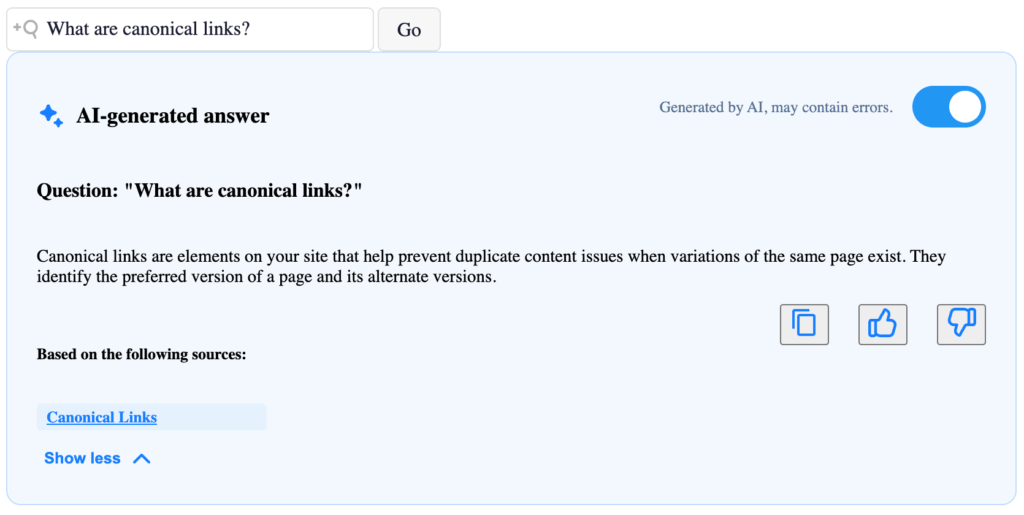
Note: AI Answers show AI-generated results only. To include traditional search results, use a dedicated search results page combining both results and AI answers accessible via a standard search form on your main pages.
Prerequisites
- Basic knowledge of HTML and JavaScript
1. Include Dependencies
Add the required AddSearch JavaScript Client, Search UI Library, and CSS files to your web page. Use the latest versions from the following GitHub repositories:
Insert the following in your HTML <head> or just before the closing </body> tag, updating the version numbers and URLs accordingly:
<link rel="stylesheet" href="https://cdn.addsearch.com/search-ui-library/latest/addsearch-search-ui.min.css">
<script src="https://cdn.addsearch.com/js-client-library/latest/addsearch-client.min.js"></script>
<script src="https://cdn.addsearch.com/search-ui-library/latest/addsearch-search-ui.min.js"></script>
Note: Ensure CSS version matches the Search UI Library version.
2. Add HTML Containers
Create container elements where the Search Field and AI Answers components will render.
<div id="searchfield-container"></div>
<div id="ai-answers-result-container"></div>
The id values are referenced in JavaScript to render components inside these containers.
3. Initialize AddSearch Client and UI
Create instances of the AddSearchClient and AddSearchUI objects in your JavaScript, enabling AI Answers.
// Replace 'YOUR_PUBLIC_SITE_KEY' with your actual public site key from the AddSearch dashboard
const addSearchClient = new AddSearchClient('YOUR_PUBLIC_SITE_KEY');

const addSearchUi = new AddSearchUI(addSearchClient, { hasAiAnswers: true });
Optional: Disable Streaming
Streaming (live rendering of AI answers) is enabled by default. To disable:
addSearchClient.useAiAnswersStream(false);
4. Configure Components
Set up the Search Field and AI Answers result components, connecting them to their containers.
// Search field input
addSearchUi.searchField({
  containerId: 'searchfield-container',
  placeholder: 'Type your question',
  button: 'Go'
});

// AI Answers display
addSearchUi.aiAnswersResult({
  containerId: 'ai-answers-result-container',
  mainHeadlineText: 'AI-generated answer',
  answerMaxHeight: 150,         // pixels
  sourcesHeadlineText: 'Based on the following sources:',
  hasHideToggle: true,
  expandByDefault: true         // start fully expanded
});
- Ensure
containerIdvalues match the IDs of your HTML containers. - The property
expandByDefaultset totruemakes the answer box fully expanded initially. Iffalse, it shows a minimal height with an expand button.
5. Start the Search UI
Render the components by starting the Search UI.
addSearchUi.start();
6. Customize Styles (Optional)
You can modify the appearance of the AI Answers container using CSS.
#ai-answers-result-container {
  margin-top: 24px;
}
Complete Example
Your basic HTML file should look like this:
<!DOCTYPE html>
<html lang="en">
<head>
  <meta charset="UTF-8" />
  <meta name="viewport" content="width=device-width, initial-scale=1.0" />
  <title>AddSearch AI Answers</title>
  <link rel="stylesheet" href="https://cdn.addsearch.com/search-ui-library/latest/addsearch-search-ui.min.css" />
</head>
<body>
  <div id="searchfield-container"></div>
  <div id="ai-answers-result-container"></div>

  <script src="https://cdn.addsearch.com/js-client-library/latest/addsearch-client.min.js"></script>
  <script src="https://cdn.addsearch.com/search-ui-library/latest/addsearch-search-ui.min.js"></script>
  <script>
    const addSearchClient = new AddSearchClient('YOUR_PUBLIC_SITE_KEY');
    const addSearchUi = new AddSearchUI(addSearchClient, { hasAiAnswers: true });

    addSearchUi.searchField({
      containerId: 'searchfield-container',
      placeholder: 'Type your question',
      button: 'Go'
    });

    addSearchUi.aiAnswersResult({
      containerId: 'ai-answers-result-container',
      mainHeadlineText: 'AI-generated answer',
      answerMaxHeight: 150,
      sourcesHeadlineText: 'Based on the following sources:',
      hasHideToggle: true,
      expandByDefault: true
    });

    addSearchUi.start();
  </script>
</body>
</html>
Troubleshooting
- Confirm your AddSearch JavaScript Client library version is 1.2 or higher.
- Confirm your Search UI Library version is 0.10 or higher.
- Make sure the
containerIdvalues in JavaScript match exactly the IDs in your HTML. - Verify the option
hasAiAnswers: trueis set when initializing the Search UI instance. - Check the browser console for errors related to script loading or API keys.
Finding Your Public Site Key
Access the AddSearch dashboard, navigate to Setup > Keys and Installation, and locate the Public site key for your site.
This completes the integration of AI Answers using AddSearch on your site. For advanced customization and updates, refer to the official repositories: