Configuring the AddSearch Recommend Global Widget
Use the AddSearch Recommend Global Widget to display customized recommendations on any page of your website. Configure the widget’s appearance and filtering rules to control which items are shown, such as products within a specific price range, related pages, or recently added content.
Overview
Setting up the Global Widget involves two main steps:
- Selecting the block type and template in the Block Wizard.
- Configuring the block settings and filters in the Block Designer.
You can publish the widget on your website using a generated script, and return later to edit or update its configuration from the AddSearch Recommend main dashboard.
Step-by-step setup instructions
1. Access the Block Wizard
- Log in to your AddSearch account.
- Navigate to Recommendations under Manage results.
- Click Add new to open the Block Wizard.

2. Select Global Block type
- Click On any page to create a Global Block.
- Click Continue to designer to proceed.

- Enter a name in the Block title field.
- Choose one of the predefined Templates or select Start from scratch.
- Click Continue to designer to open the Block Designer.

3. Configure in the Block Designer
The Block Designer includes two main sections to configure:
A. Basic settings
- Change the block title (internal label, not shown to users).
- Select the widget layout: Grid, List, or Carousel.
- Set the widget header title (this is displayed to users).
- Specify the currency format for price fields.
- Choose which product details fields to display or hide.

B. Content & Filtering
- Define the number of items to show.
- Set the sorting method for the items.
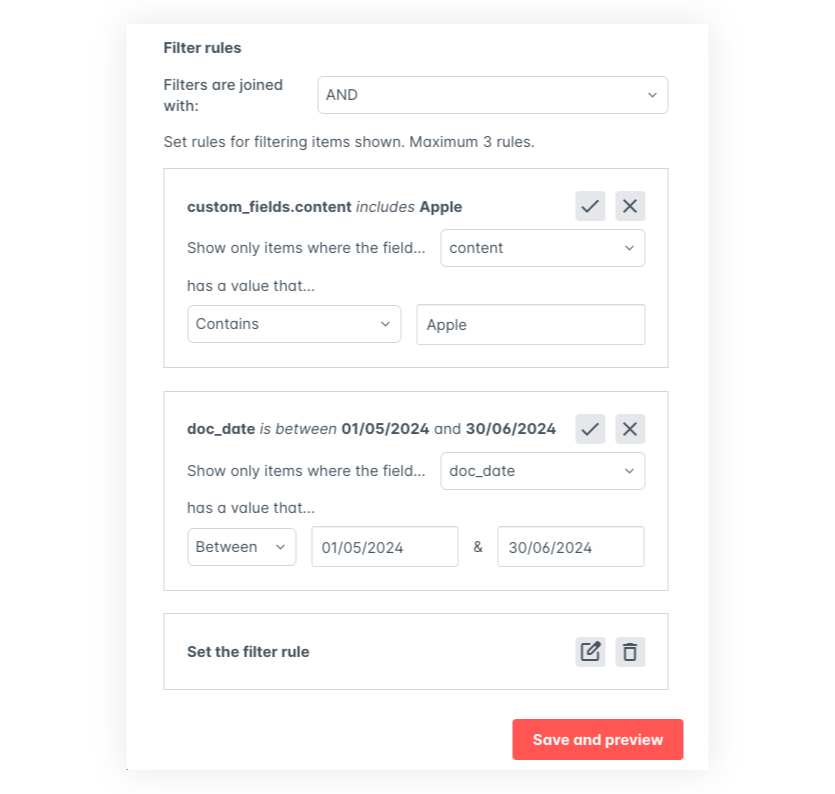
- Configure filter logic and filtering rules.

Filter logic
Choose how filter rules combine:
- AND: All filter criteria must be met.
- OR: At least one filter criterion must be met.
Adding filter rules
- Click + Add rule and then Based on items attribute.
- Edit the new rule by clicking the pencil icon.
- Select the target field, such as title, h1, price, or date.
Filter rules differ based on data type:
| Field type | Operators and input |
|---|---|
| Text (e.g., color, manufacturer) | Contains, Does not contain: enter matching text |
| Number (e.g., price, size) | Between, Greater than, Less than: enter number(s) |
| Date | Within the last: enter a number + select Days/Weeks/Months |
| Between: select date range | |
| Before/After: select specific date |
You can add up to three filter rules per block.
4. Preview and publish
- Click Save and preview to save changes and see a preview of the widget.
- When ready, click the Publish button at the top right.
- Confirm by clicking Yes to publish.
- Copy the script from the prompt and add it to your website’s pages where you want the widget to appear.
You can reopen this script prompt anytime by clicking the Show Script button in the Block Designer.
Note: If you update the block after publishing, you must publish again for changes to appear on your site.
For more on installing the AddSearch Recommend Widget, see the installation guide.