Configuring the AddSearch Recommend Product Widget
Use the AddSearch Block Designer to create and customize the Recommend Product Widget. This widget dynamically shows product recommendations based on the specific item a user views, using Product relations and filtering options.
Overview
- Product relations enable the widget to detect attributes (like manufacturer) from the current product page and adjust recommendations accordingly.
- Frequently Bought Together (FBT) uses the FP growth algorithm to suggest products or pages often purchased together.
Setup Steps
1. Access Block Wizard
- Log in to your AddSearch account.
- Navigate to Manage results > Recommendations.
- Click Add new (to create a new block) or the Edit link (to modify an existing block).

2. Select Block Type and Template
- Choose On product pages to create a Product Block.
- Click Next to proceed to the Block Designer.

- Enter a name in the Block title field.
- Click Continue to designer.

3. Configure Block in Block Designer
The Block Designer has two main sections:
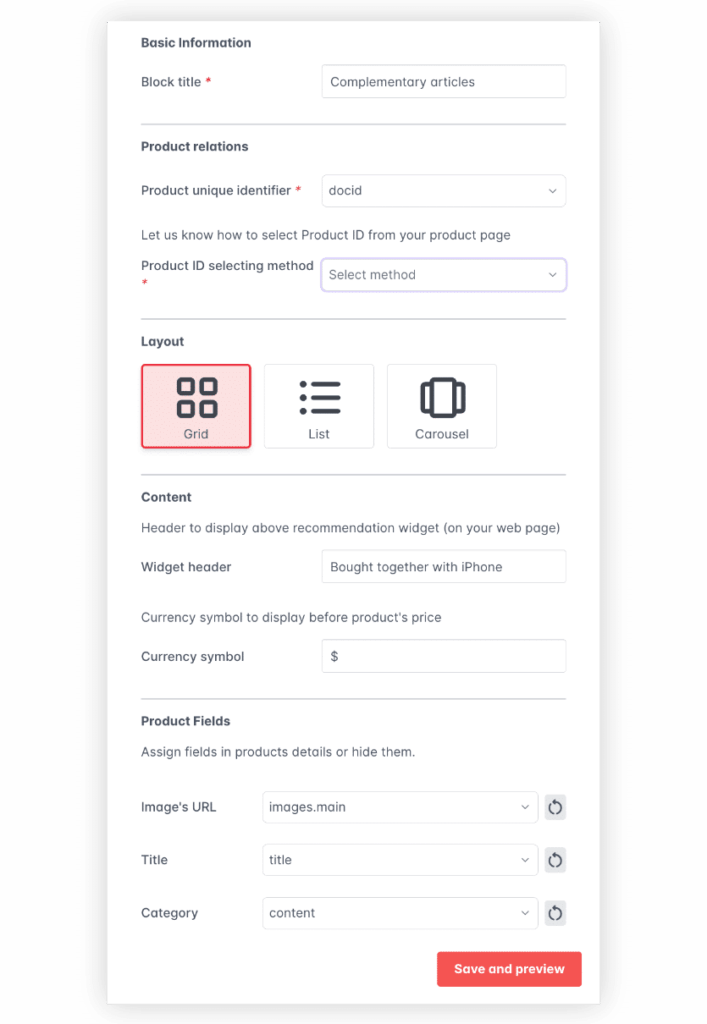
A. Basic Settings
- Block Title: Modify the internal title (not shown on the site).
- Product relations: Select how the widget identifies the product using:
- CSS Selector: Matches HTML elements by CSS patterns.
- HTML Attribute: Matches elements by specific HTML attributes.
- JSON-LD Selector: Extracts fields from JSON-LD structured data.
- URL parameter: Uses parameters from the page URL.
- JavaScript variable: Uses variables defined in page scripts.
- Widget layout: Choose Grid, List, or Carousel display.
- Widget header: Set a visible title for the widget.
- Currency format: Define how prices display.
- Product fields: Show or hide individual product details.
Note: Product relations create dynamic filters based on the current product; see identifying CSS selectors for more guidance.
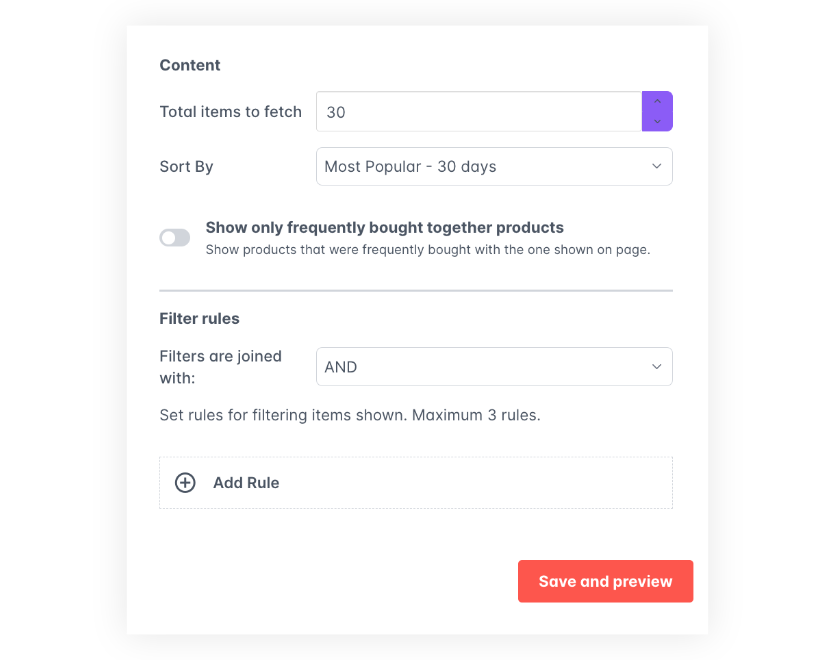
B. Content & Filtering
- Set how many items to display.
- Select sorting options.
- Enable/disable Frequently Bought Together (FBT).
- Define filtering rules and how multiple filters combine:
- AND: All filters must match.
- OR: At least one filter matches.
Configure FBT recommendations separately; see FBT overview.
Adding Filtering Rules
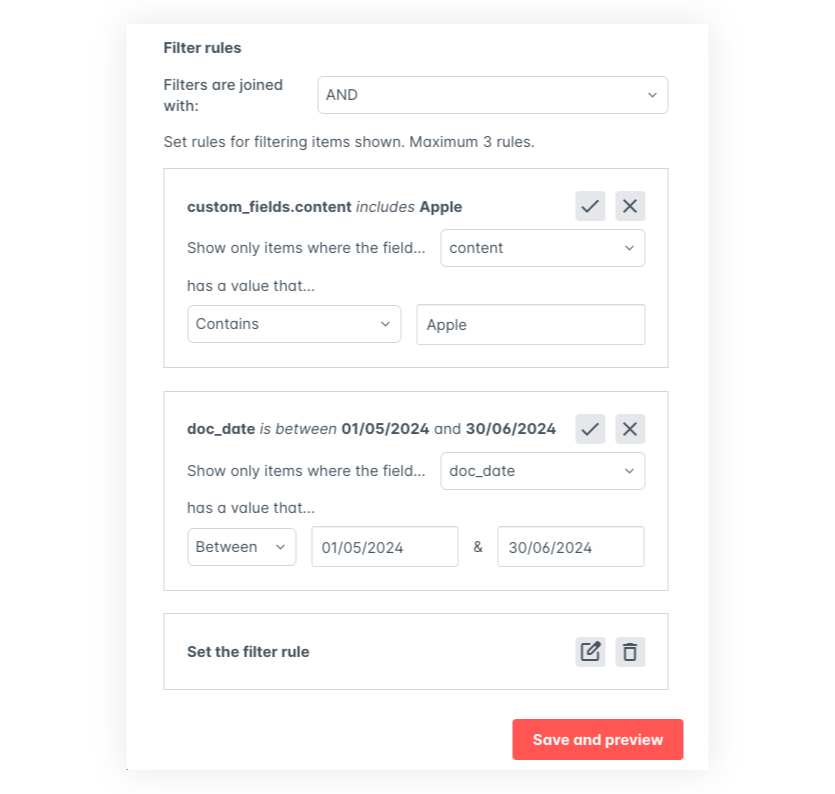
- Click + Add rule then Based on items attribute.
- Click the pencil icon to edit the rule.
- Select a field (e.g., title, price, date).
Filtering operators depend on field type:
| Field Type | Operators |
|---|---|
| Text (e.g., color, manufacturer) | Contains, Does not contain [text input required] |
| Number (e.g., price, size) | Between, Greater than, Less than [number input required] |
| Date | Within the last (days/weeks/months), Between, Before, After [date picker and/or number input] |
You can create up to three filtering rules per block.
4. Publish the Widget
- Click Save and preview to save changes and view recommendations.
- Click Publish at the top right when ready to deploy.
- Confirm publishing by clicking Yes.
- Copy the provided script and insert it into your website's code.
To retrieve the script later, click the Show Script button in the Block Designer.
For help installing the AddSearch Recommend Widget, see Installing AddSearch Recommend.
This guide covers configuring the Product Widget to display dynamic, filtered product recommendations based on the page content and optionally enable Frequently Bought Together suggestions for relevant cross-selling.