Analytics Tags
Use analytics tags to filter and view search analytics data based on specific tags. This feature helps you split analytics metrics for a single search index by tags, enabling comparisons such as A/B testing different search UIs or analyzing search behavior from different geo-locations.
Note: To collect analytics data tagged appropriately, you must configure your implementation to report these tags. See the Reporting tags section below.
How to filter analytics by tags
-
Sign in to your AddSearch Account.
-
Navigate to any analytics page by selecting one of these options under the Analytics menu:
- Overview
- Keywords
- Results

-
In the analytics page, open the Select tag dropdown menu and choose the tag you want to filter by.
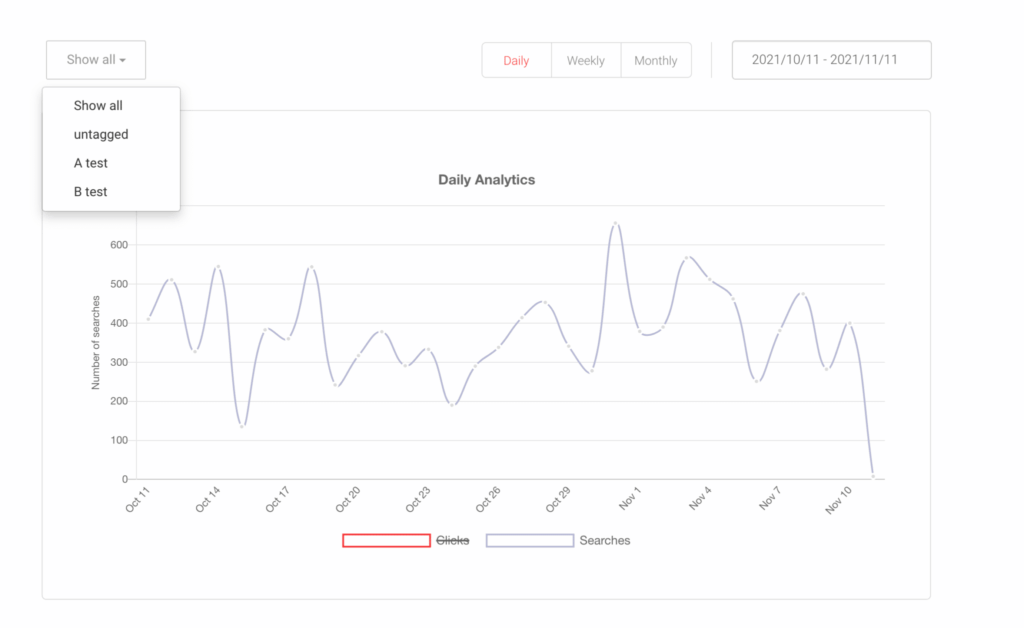
The selected tag filter applies across all analytics pages until you change or clear it.
Reporting tags in analytics data
To include tags in your analytics data, configure your search implementation to report analytics events with tags. You can do this using:
- The Analytics API to send tagged user events.
- The Search UI library to tag events within your frontend.
- The AddSearch JavaScript client supports event tagging; refer to its documentation for details.
Make sure your implementation correctly tags the analytics events, so the dashboard filters work as expected.