How to Integrate AddSearch with Google Analytics
AddSearch can send search event data directly to Google Analytics (GA). This guide explains how to configure the integration depending on whether you use Google Analytics 4 (GA4) directly or serve analytics via Google Tag Manager (GTM).
Note: Google Analytics integration is available for Core, Advanced, and Enterprise plans.
1. Google Analytics (GA4) Setup
AddSearch uses search-as-you-type, so you must disable Google Analytics's default Site Search tracking to avoid duplicate data.
Disable Site Search Tracking in GA4
- Sign in to your Google Analytics account.
- Click the Admin icon in the bottom-left corner.
- Under the desired account and property, click Data Streams.
- Select your GA4 data stream linked to your website.
- In the Enhanced measurement section, click the gear icon ⚙️.
- Turn off the Site search toggle.

Enable AddSearch GA Integration
After disabling site search, enable the GA integration in your AddSearch installation (instructions in section 3).
AddSearch injects necessary GA4 event tracking code automatically. If you use manual GA4 tagging, ensure your measurement ID follows the format G-XXXXXXXXXX.
2. Google Tag Manager (GTM) Setup
If you deploy Google Analytics via GTM, follow these steps to set up event tracking for AddSearch.
Create User-Defined Variables
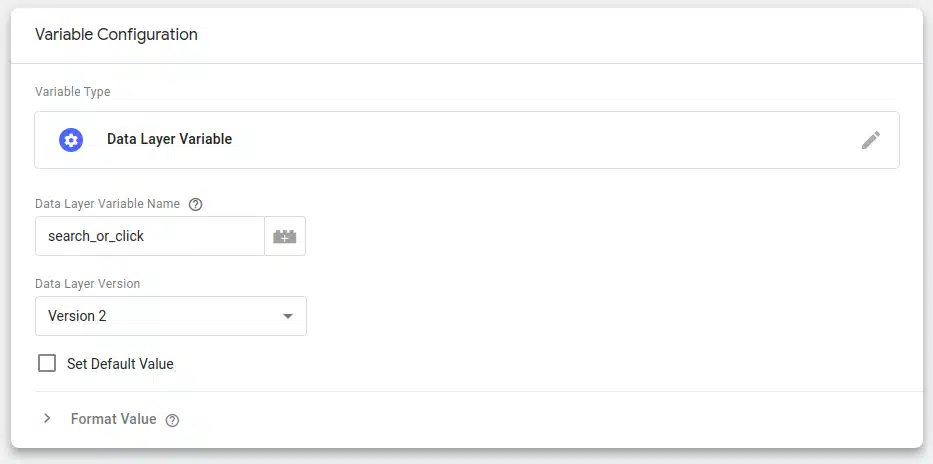
Create three Data Layer Variables in GTM:
- search_or_click
- search_term
- num_results
Steps to create each variable:
- Log in to Google Tag Manager.
- Select Variables from the left menu.
- Under User-Defined Variables, click New.
- Click Variable Configuration and select Data Layer Variable.
- Enter the variable name exactly (
search_or_click,search_term, ornum_results). - Save and name the variable accordingly.
Create a Custom Event Trigger
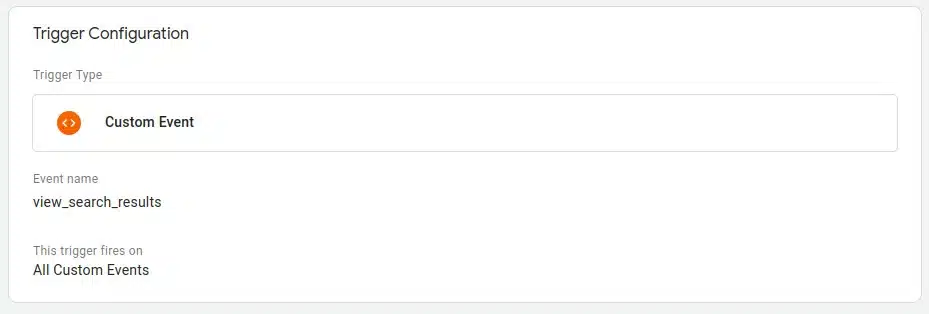
- Go to Triggers in GTM.
- Click New.
- Choose Trigger Configuration > Custom Event.
- Set Event Name to
view_search_results. - Save and name the trigger
view_search_results.
Create a GA4 Event Tag
- Go to Tags in GTM.
- Click New.
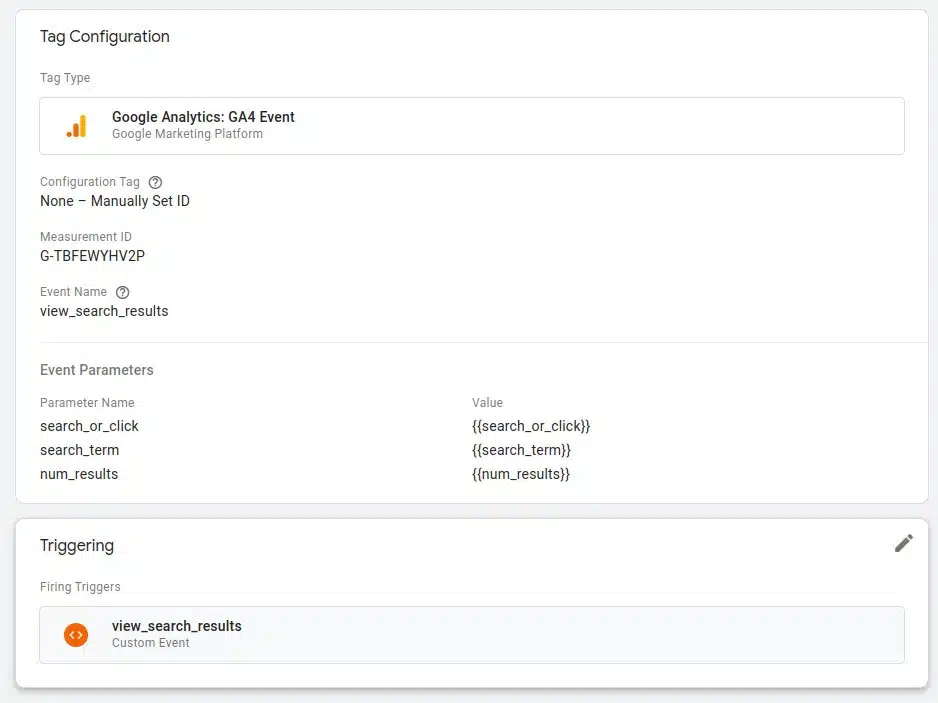
- Select Tag Configuration > Google Analytics: GA4 Event.
- Choose the GA4 Configuration Tag, or select Manually Set ID and enter your GA4 Measurement ID (format:
G-XXXXXXXXXX). - Set the Event Name to
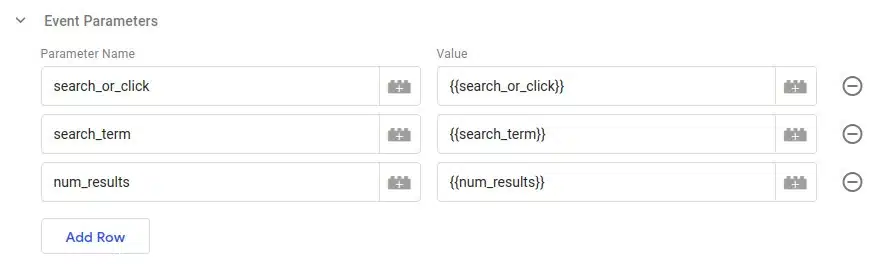
view_search_results. - Add event parameters referencing the variables created earlier:
| Parameter Name | Value (Variable) |
|---|---|
| search_or_click | {{search_or_click}} |
| search_term | {{search_term}} |
| num_results | {{num_results}} |
- Set the trigger to the
view_search_resultstrigger created above. - Save the tag as
view_search_results.
Publish Changes
Submit and publish the container in GTM. After publishing, AddSearch search events will be sent to Google Analytics.
Final tag configuration example:
3. Enable Google Analytics Integration in AddSearch
Once GA or GTM is configured, enable the integration within your AddSearch settings:
- Open the AddSearch Search Designer.
- Enter your site key in the Site key field.
- Select the search type: Widget or Search Results Page.
- Click Advanced to open advanced settings.
- Toggle on Google Analytics Integration.
- Click Apply changes to save.
- To update your website, click Installation Script at the top right, copy the updated script, and add it to your website source code.
If you use legacy ready-made views, the integration is enabled by default.
If unsure about your setup or using a custom solution, contact AddSearch Support for assistance.
Other Analytics Platforms
You can also send AddSearch event data to other analytics platforms such as Adobe Analytics or Matomo (Piwik) using custom analytics events.
See the AddSearch Search UI analytics documentation.
Contact support@addsearch.com for help with alternative integrations.