Configuring FBT Recommendations
Follow these steps to create and enable a configuration profile for FBT (Frequently Bought Together) recommendations:
-
Add a dataset to your account if you have not done so already.
-
In the Create configurations section, click the Create new button to start a new configuration profile.
-
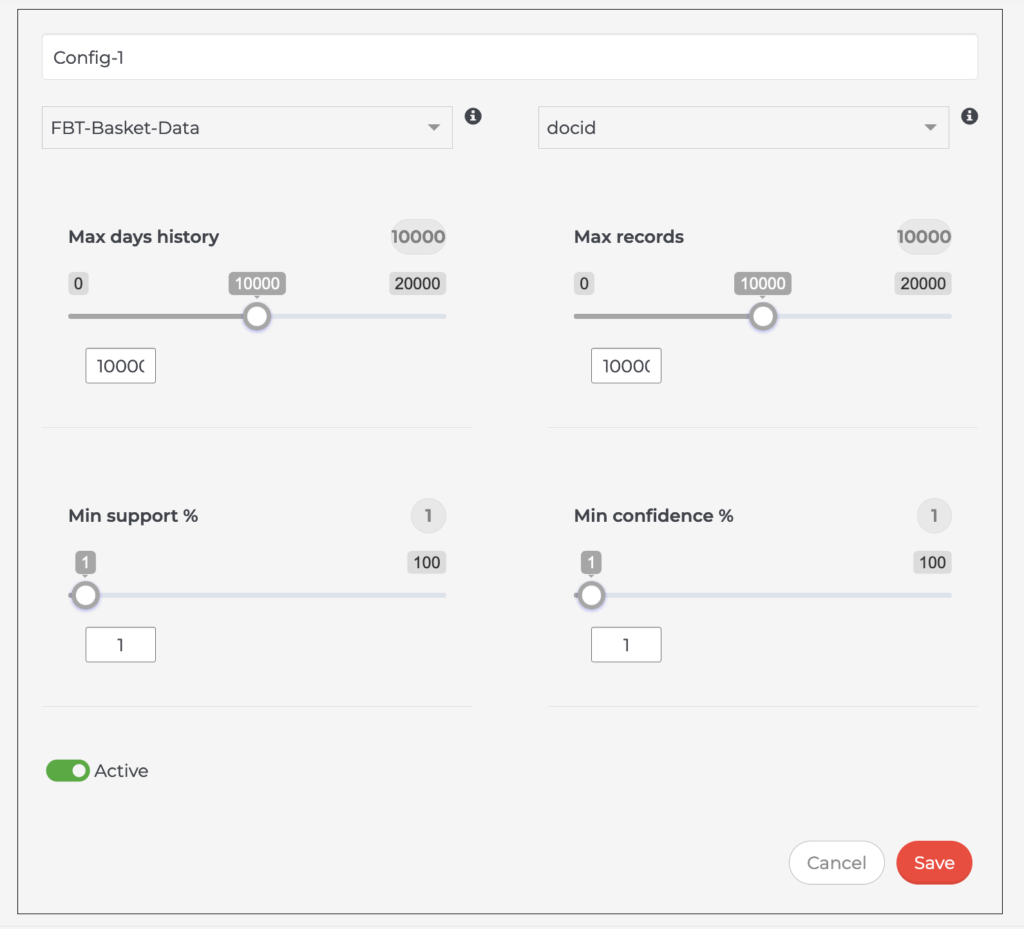
Select the dataset you want to use from the Data Set Label dropdown menu.
-
Choose a matching field from your index in the Product Field Path menu. This field should correspond to the "item" field in your dataset. Typically, this is either the document ID or a custom field in your index.
-
Adjust the algorithm parameters as needed:
- Max days history: Set the number of past days of data to include in the analysis.
- Max records: Define the maximum number of data records considered in the configuration.
- Min support %: Set the minimum percentage of carts in which an item must appear to be included. Support is calculated as the number of carts containing the item divided by the total number of carts.
- Min confidence %: Set the minimum confidence percentage for association rules. Confidence measures how often the association rule holds true.
You can adjust these parameters using the sliders or enter numeric values directly below each slider.
-
After completing your configuration, toggle the Active switch to enable this profile.
-
Click Save to apply and store your configuration.
This profile will now guide the FBT recommendations algorithm based on your dataset and parameter settings.
Note: Review the screenshot to confirm the current interface matches the steps above, as UI elements may have changed. Adjust instructions accordingly if you notice discrepancies.