Enabling and Configuring Personalization
Personalization customizes search results for individual visitors based on their past search behavior. To use this feature, you must implement user token cookies in your website's search instance via the REST API or the Search UI Library. For detailed implementation instructions, see Implementing Personalization.
This guide shows how to:
- Enable and configure Personalization in the AddSearch dashboard.
- Preview personalized search results for a specific user.
1. Enable and configure Personalization
-
Log in to your AddSearch account.
-
Navigate to Manage results > Personalization.
-
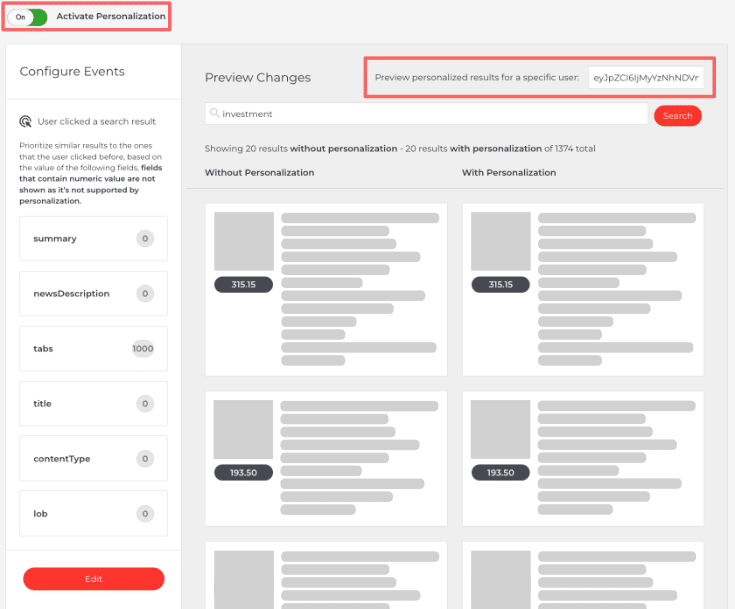
Activate Personalization by toggling the Activate Personalization switch.
-
Click the Edit button below the list of fields to configure boost values based on user behavior.
-
Adjust the boost values for each custom field using the sliders.
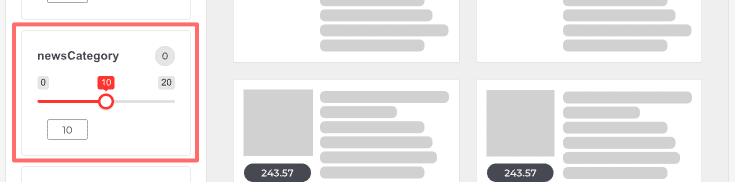
For example, if a user clicks on a search result where the
newsCategorycustom field is set to 'Global', pages withnewsCategory= 'Global' will receive a boost in future searches for that user. Pages with othernewsCategoryvalues, such as 'Local', will not be boosted.Note: Personalization currently does not support custom fields that contain numeric values.
-
Use the following buttons to manage your changes:
- Save changes – Apply the updated boost values.
- Cancel – Discard your edits.
- Restore to defaults – Reset boost values to their original settings.

2. Preview personalized search results
After configuring Personalization, you can preview how search results differ for individual users:
-
In the same Personalization page, locate the Preview personalized results for a specific user input field.
-
Enter the user token associated with the visitor you want to simulate.
-
View the personalized results in the With Personalization column alongside the regular Without Personalization results.
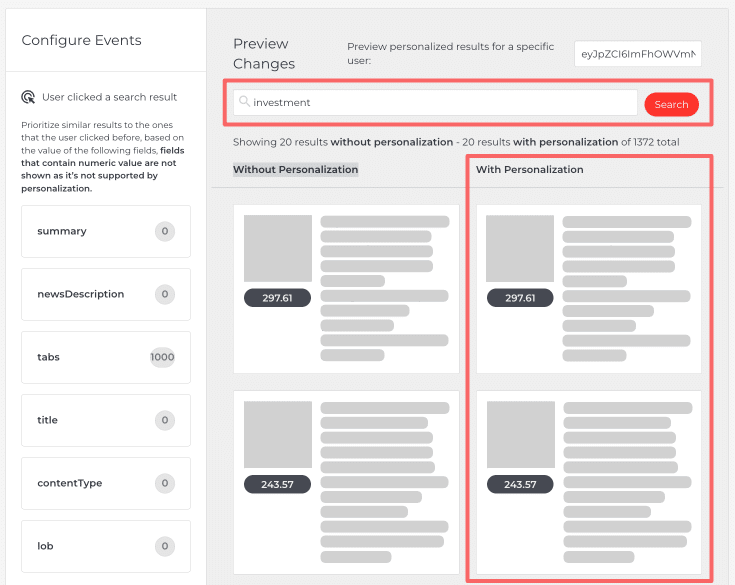
This preview helps verify that personalization boosts are applied correctly based on user activity.
For further details on integrating personalization tokens and user tracking, refer to the Implementing Personalization documentation.