Identifying CSS Selectors
Use CSS selectors to target specific HTML elements on your web pages for AddSearch features, including AddSearch Recommend, Custom Fields Manager, and Text Extraction Rules.
Why identify CSS selectors?
- AddSearch Recommend Product Widget: Uses CSS selectors to identify the product currently viewed and provide relevant recommendations.
- Custom Fields Manager: Uses CSS selectors to extract and index content as custom fields.
- Text Extraction Rules: Use selectors to include or exclude content during indexing by controlling which HTML elements the crawler considers.
How to find CSS selectors
You can locate CSS selectors by inspecting elements on your web page with the Developer Tools available in most modern browsers such as:
Identify CSS selectors with Google Chrome
-
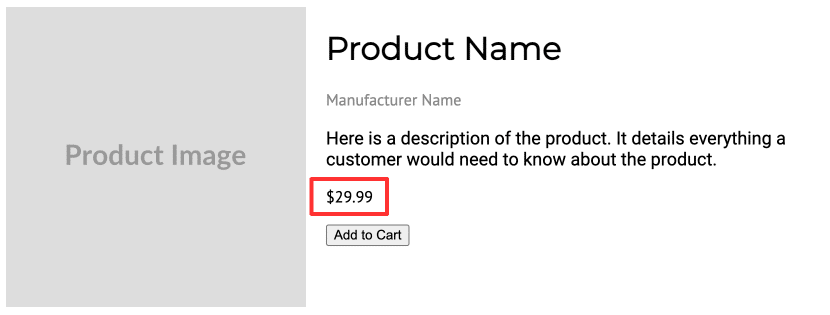
Navigate to the web page and right-click the element you want to select (e.g., a price).
-
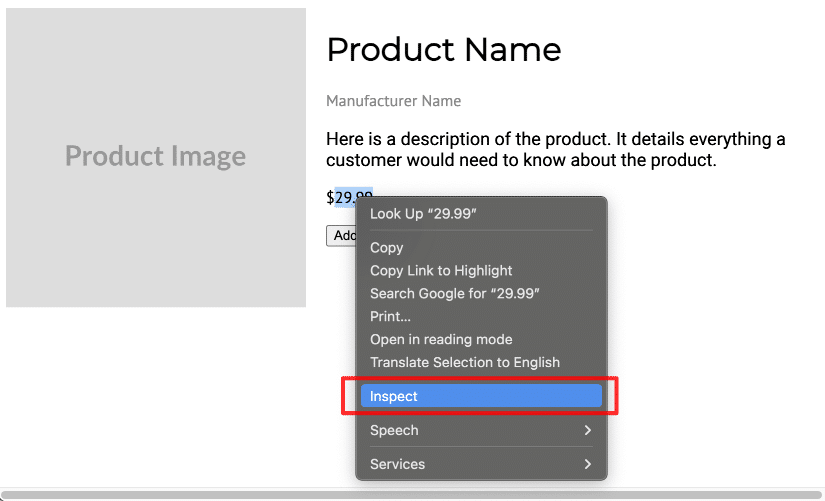
Click Inspect from the context menu to open the Developer Tools Elements panel. The corresponding HTML element will be highlighted.
-
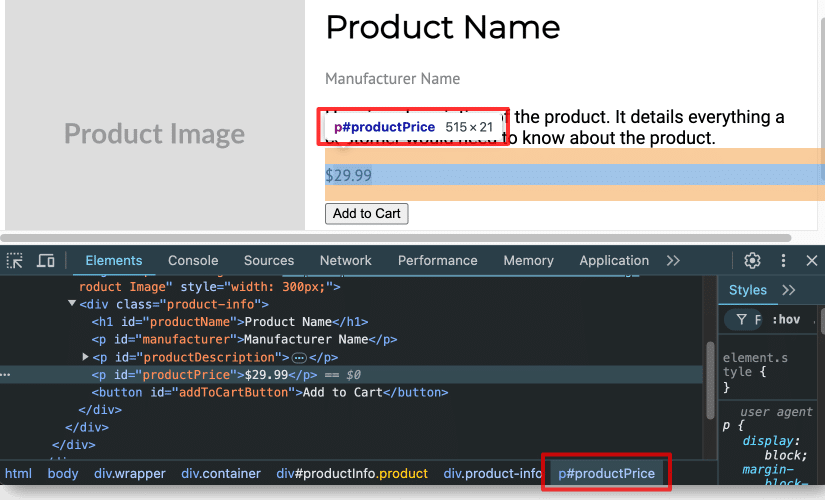
Hover over the highlighted HTML code in the Elements panel to see the CSS selector displayed at the bottom of the Developer Tools panel.
-
Note the CSS selector and apply it to your AddSearch configuration.
Identify CSS selectors with Safari
-
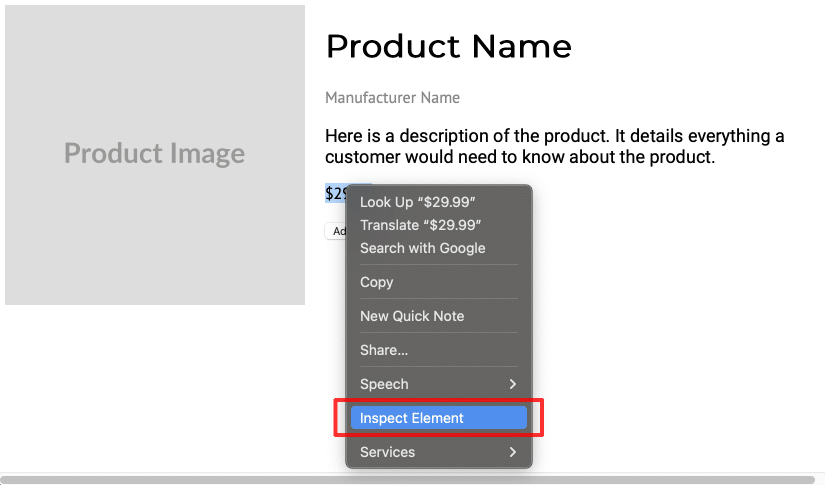
Right-click the target element and select Inspect Element from the context menu.
-
Safari's Web Inspector opens with the corresponding HTML element highlighted.
-
The CSS selector shows near the top of the Web Inspector panel under the tabs.
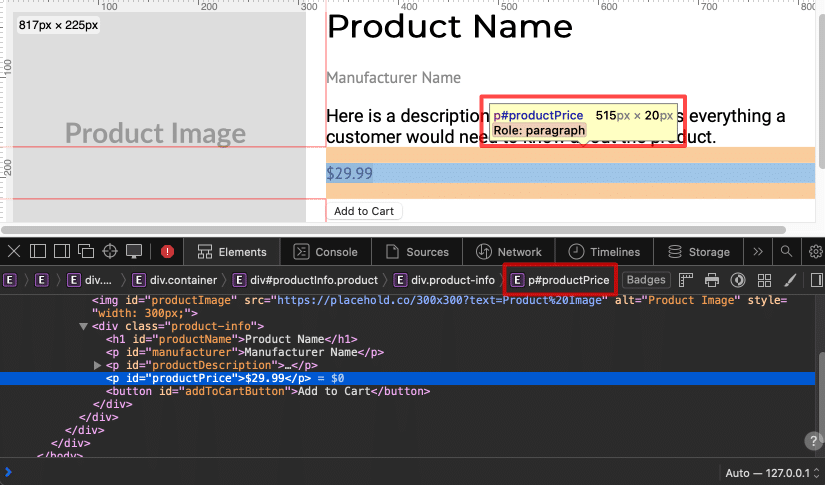
-
Record the CSS selector for use in AddSearch.
Identify CSS selectors with Firefox
-
Right-click the element and select Inspect.
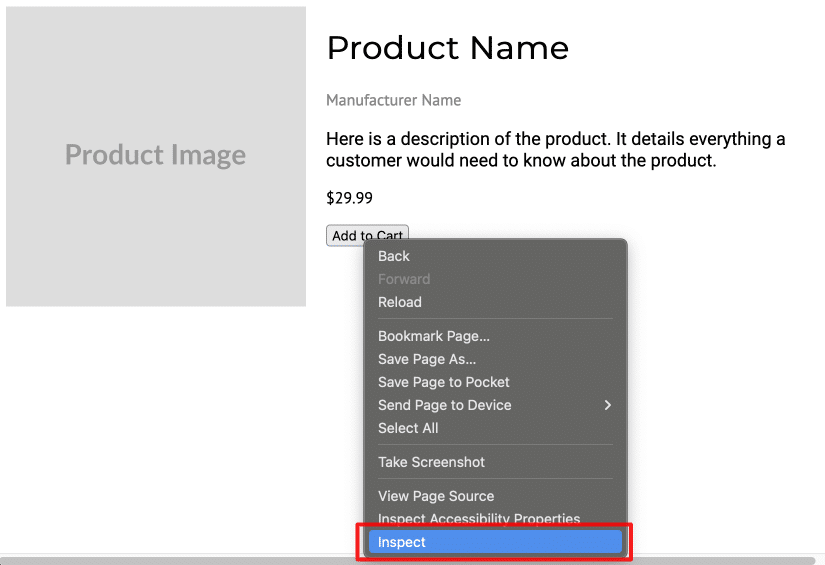
-
Firefox Developer Tools open with the selected element highlighted.
-
The CSS selector appears at the bottom of the Inspector panel.

-
Save the selector to apply it within AddSearch.
Test the CSS selector in the browser Console
After identifying a CSS selector, test it in the browser console:
-
Open Developer Tools (Inspect) and switch to the Console tab.
-
Enter the command:
document.querySelector('CSS SELECTOR')Replace
'CSS SELECTOR'with your identified selector (e.g.,#productPrice). -
Press Enter. If the selector is correct, the Console returns the matching HTML element.

Use this process to verify the selector before applying it to AddSearch features.