Getting Started with the Search UI Library
This tutorial guides you through creating a basic search results page using the AddSearch Search UI Library.
You will create a new HTML page on your website (for example, search-results.html) containing your first Search UI implementation.
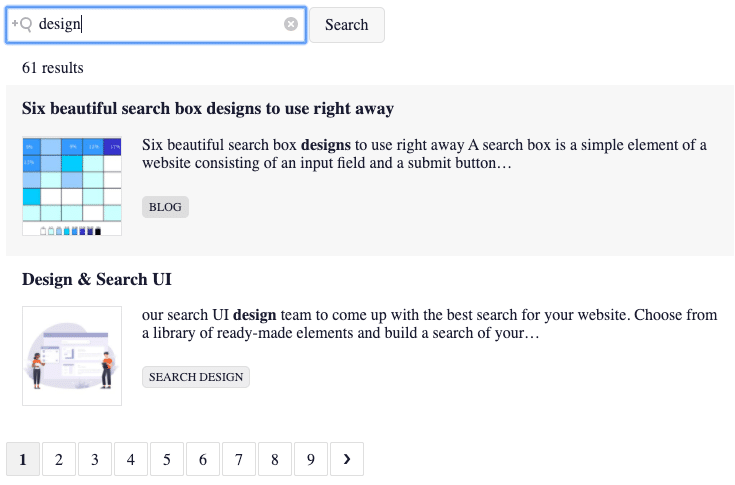
Steps to create the search view
- Include the necessary dependencies
- Add container elements for the components
- Create the client and Search UI Library instances
- Define the components and start the Search UI
This tutorial assumes you have basic knowledge of HTML and JavaScript.
1. Include the dependencies
Add the following <script> and <link> tags inside your HTML <head> or before your closing </body> tag to load the AddSearch JavaScript client, Search UI Library, and styles:
<script src="https://www.addsearch.com/js/search-ui.min.js"></script>
<link rel="stylesheet" href="https://www.addsearch.com/css/search-ui.min.css" />
Always use the latest version of the Search UI Library to access current features and bug fixes. Check the Search UI Library releases on GitHub for updates.
2. Add containers for the components
Create HTML container elements with unique IDs where each UI component will render.
For this basic search view, create containers for the search field, search results, and pagination:
<div id="searchfield-container"></div>
<div id="results-container"></div>
<div id="pagination-container"></div>
3. Create client and Search UI instances
Initialize the AddSearch JavaScript client using your site key, and create an instance of the Search UI Library:
// Replace 'YOUR_SITE_KEY' with your actual AddSearch site key
const client = new AddSearchClient('YOUR_SITE_KEY');
const searchui = new AddSearchUI(client);
Obtain your site key by signing up at addsearch.com.
4. Define components and start the Search UI
Configure the UI components by specifying the container IDs and settings, then start the Search UI to render the components.
// Search field with placeholder, button, and search-as-you-type enabled
searchui.searchField({
  containerId: 'searchfield-container',
  placeholder: 'Keyword..',
  button: 'Search',
  searchAsYouType: true
});

// Search results display
searchui.searchResults({
  containerId: 'results-container'
});

// Pagination controls
searchui.pagination({
  containerId: 'pagination-container'
});

// Initialize all components
searchui.start();
Each component's containerId associates it with the corresponding HTML container.
View the result
See a working example of this basic search view at the AddSearch UI Examples - Basic.
Explore additional UI examples at the AddSearch UI Examples page.
This guide equips you to build a foundational AddSearch-powered search interface on your website. Customize component settings further to fit your design and functionality needs.