User Roles and Management in AddSearch
AddSearch lets you add new users and manage their roles through the AddSearch dashboard.
User Roles and Permissions
AddSearch provides three user roles with the following privileges:
| Privilege | Admin | User | Read only |
|---|---|---|---|
| Manage users | ✔ | ||
| See invoices | ✔ | ||
| Update billing information | ✔ | ||
| Modify search settings | ✔ | ✔ | |
| Browse dashboard | ✔ | ✔ | ✔ |
- Admin users can manage other users, view invoices, update billing information, change search settings, and browse the dashboard.
- User roles can modify search settings and browse the dashboard but cannot manage users or billing.
- Read only roles have read-only access to browse the dashboard without permissions to change settings.
The first account user automatically receives the Admin role.
Adding a New User
-
Log in to your AddSearch Account.
-
Navigate to the Users section.
-
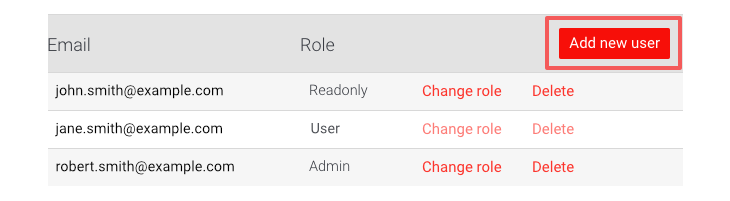
Click Add new user.
-
Enter the email address of the new user.
-
Click OK to confirm.
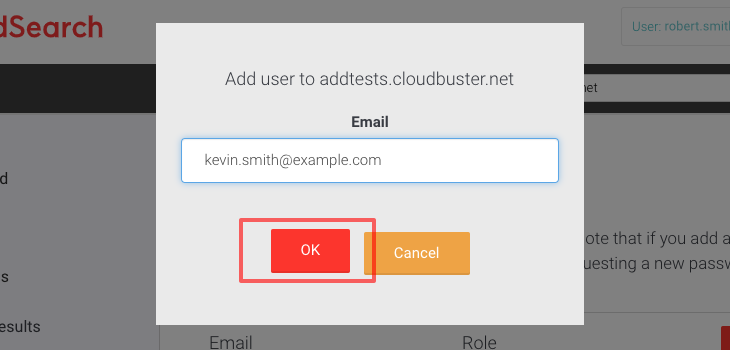
The new user must activate their account by requesting a password reset on the login page.
Changing User Roles
-
Log in to your AddSearch Account.
-
Go to the Users section.
-
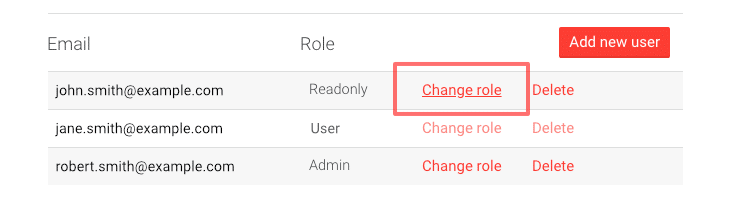
Click Change role next to the user whose role you want to update.
-
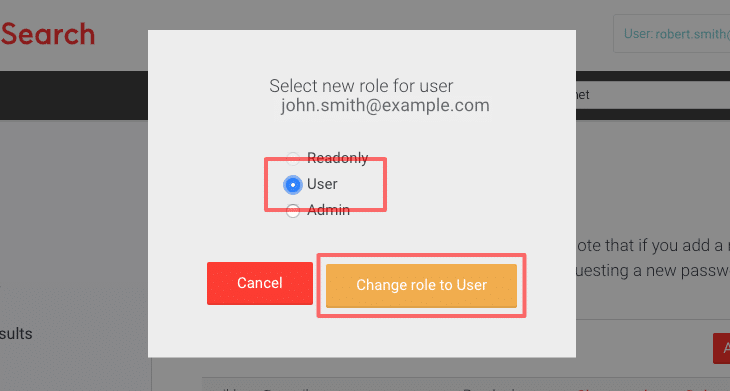
Select the desired role using the radio buttons.
-
Click Change role to save the changes.
Important Notes
- Only users with the Admin role can add new users or change user roles.
- Ensure you have the appropriate permissions before attempting these tasks.