Multi-Factor Authentication
Multi-factor authentication (MFA) adds an extra layer of security to your AddSearch account by requiring a secondary verification step during login.
How to enable multi-factor authentication
- Log in to your AddSearch Dashboard.
- Click your user account dropdown in the top right corner.
- Select Security from the dropdown menu.
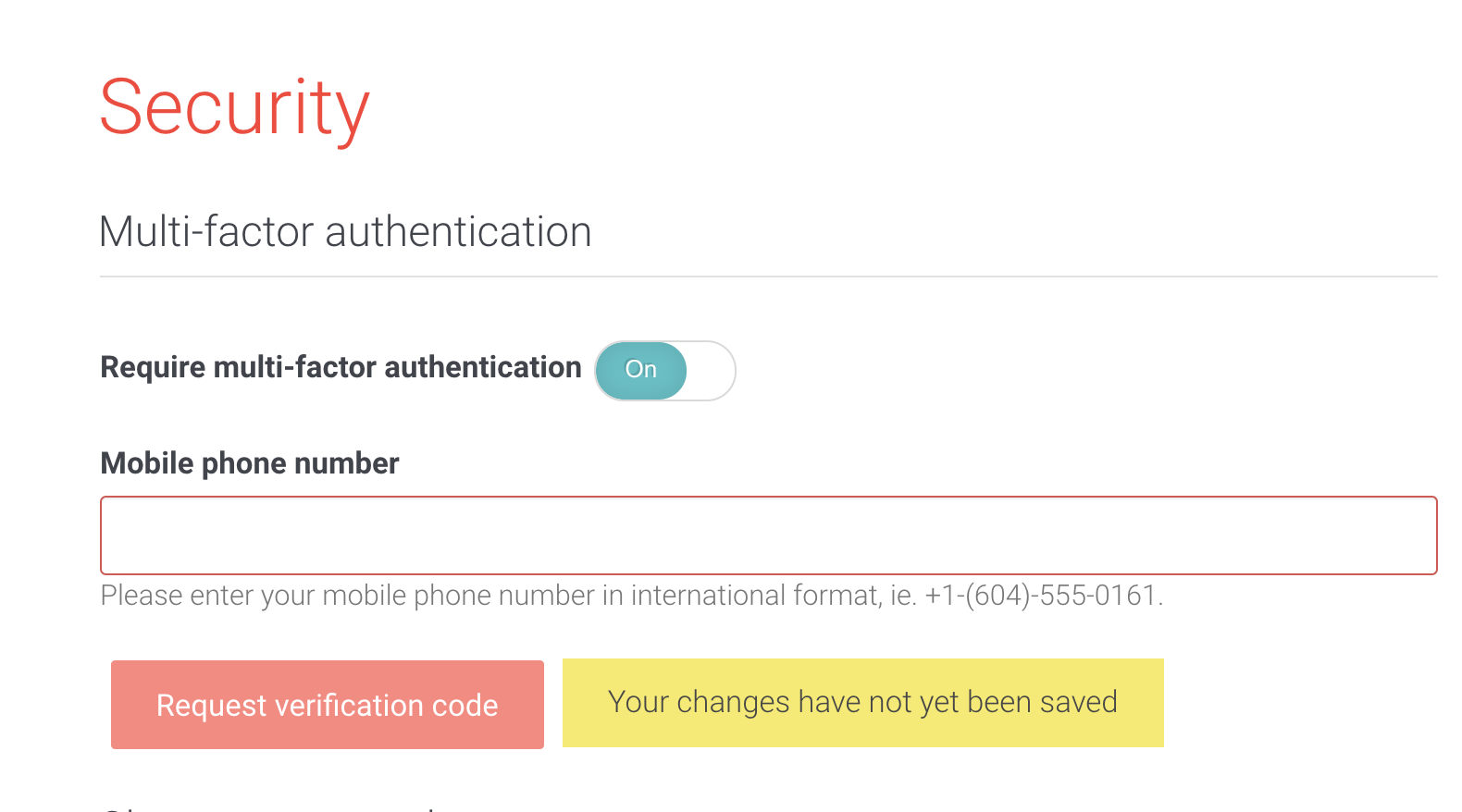
- Enable the option labeled Require multi-factor authentication by toggling its switch on.
- Enter your mobile phone number when the field appears. This number will receive your verification codes.
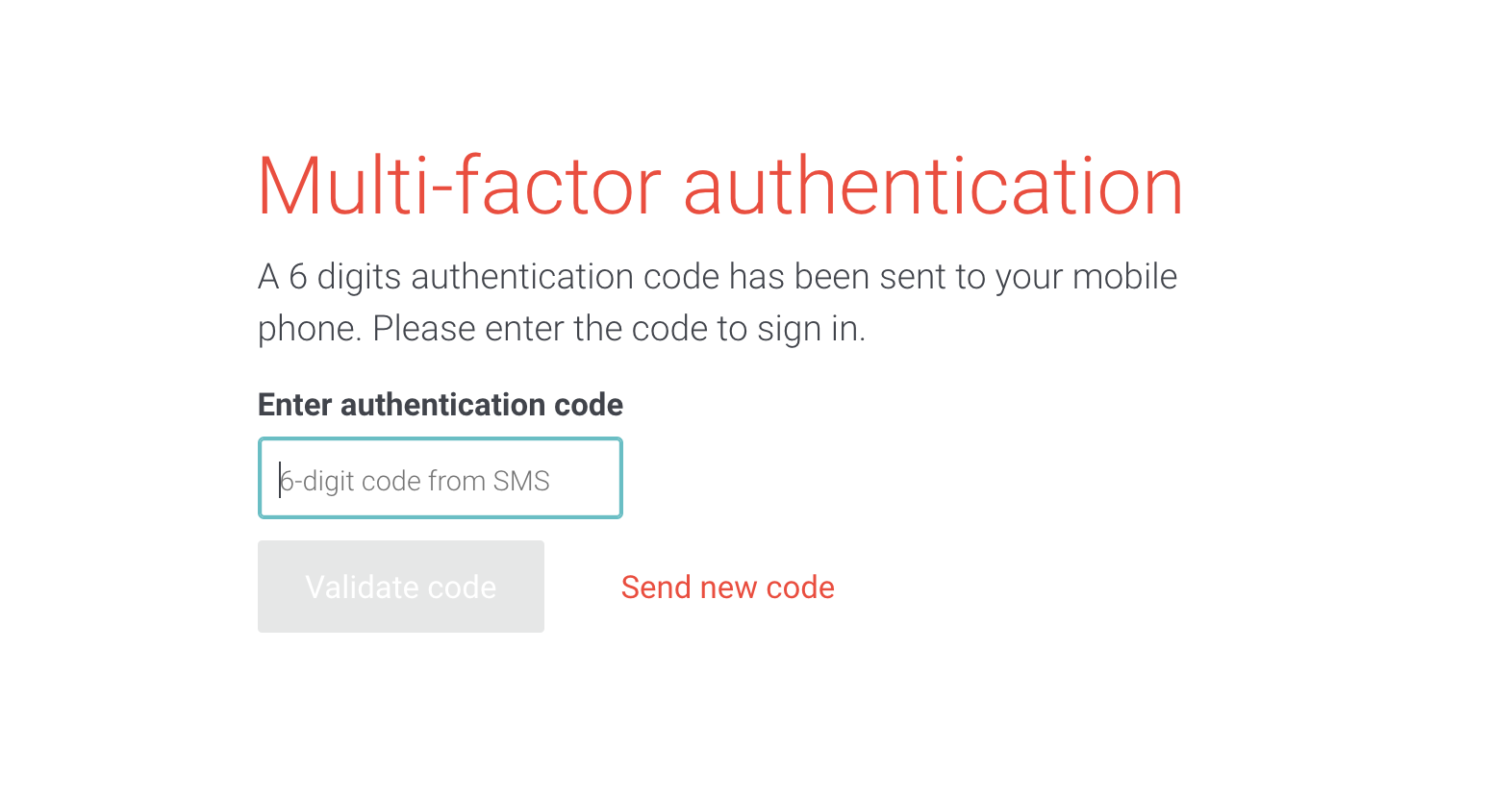
- You will receive a 6-digit authentication code via SMS on your phone.
- Enter this code in the provided field to verify your phone number.
Using multi-factor authentication
After setup, every time you log in to your AddSearch account, you will first enter your password, then complete the multi-factor authentication by submitting the code sent to your phone.
This process ensures that only users with access to your registered phone number can log in, improving your account's security.