Using Custom Fields Manager
Use the Custom Fields Manager to extract specific content from your web pages and store it as structured data in your AddSearch index. This structured data can include searchable text, dates, or numeric values. Depending on the data type, you can filter, sort, and rank your search results based on these custom fields.
You can define selectors to extract data using either CSS selectors for HTML elements or JSONPath selectors for JSON objects embedded in your pages. After adding or updating a custom field, you must trigger a re-crawl so the structured data can be indexed.
This approach leverages existing page content without requiring separate data input.
For further details about working with custom fields, see Using Custom Fields. To define custom data via meta tags, see Defining Custom Fields.
Adding Custom Fields
Note: Custom field names can only include letters (A-Z, a-z), numbers (0-9), underscores (_), and hyphens (-).
To add a custom field:
- Log into your AddSearch account.
- Navigate to Setup > Custom Fields Manager.
- Click Add new to create a new custom field.
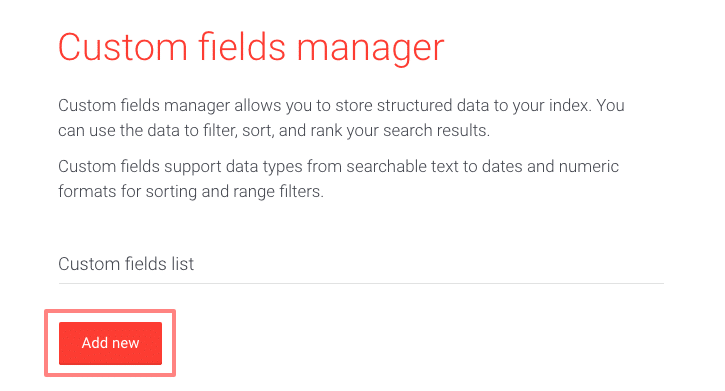
Custom Fields Manager Interface
The interface lets you configure the following for each custom field:
- Custom field name
- Data type (e.g., text, date, number). Select appropriately as it affects filtering and sorting capabilities.
- Selector type (CSS or JSON)
- Selector settings depending on selector type
- Controls to Close, Save, or Remove the field
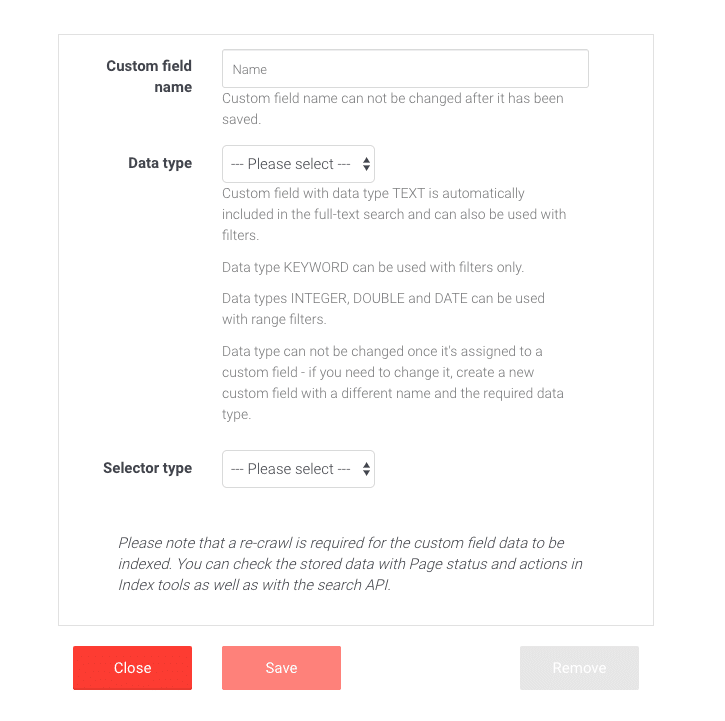
Using CSS Selectors to Extract Content
When the selector type is CSS, specify a CSS selector to target the HTML element containing the content you want to index.
For example, given HTML containing a book title:
<div id="book">
  <div id="title">Relativity: the Special and General Theory</div>
  <div id="author">Albert Einstein</div>
</div>
You can use the selector div#book div#title to extract the book title.
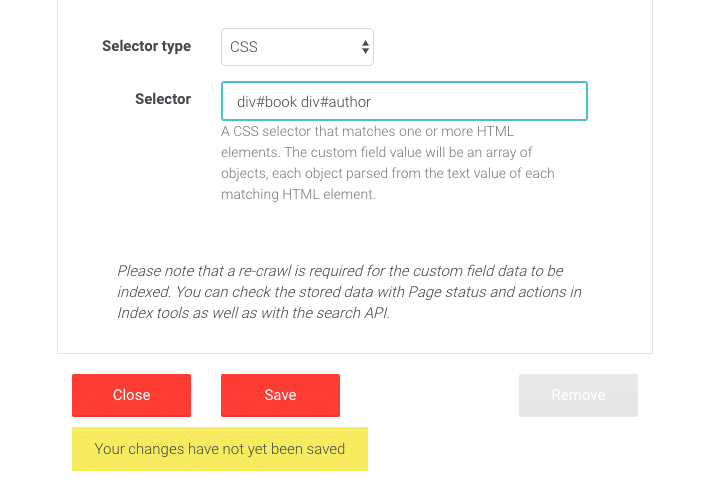
After defining the selector, click Save to apply.
For help identifying CSS selectors, see Identifying CSS selectors from web pages.
Using JSONPath Selectors to Extract Content
For JSON data embedded in your page, you use a two-step selector:
- A CSS selector to identify the HTML element containing the JSON (e.g., a
<script>tag). - A JSONPath selector to extract the desired data from the JSON object.
For example, given a <script> element with id book-store containing JSON data, use script#book-store as the CSS selector.
To extract the author of the first book in the JSON, use the JSONPath selector $.store.book[0].author.

After configuring these selectors, click Save.
Indexing Custom Field Data
After creating or updating custom fields, start a site re-crawl to ensure the data is indexed.
You can verify the extracted data via the Page status and actions section within Index tools or by querying the Search API.