Defining and Managing Featured Images for Search Results
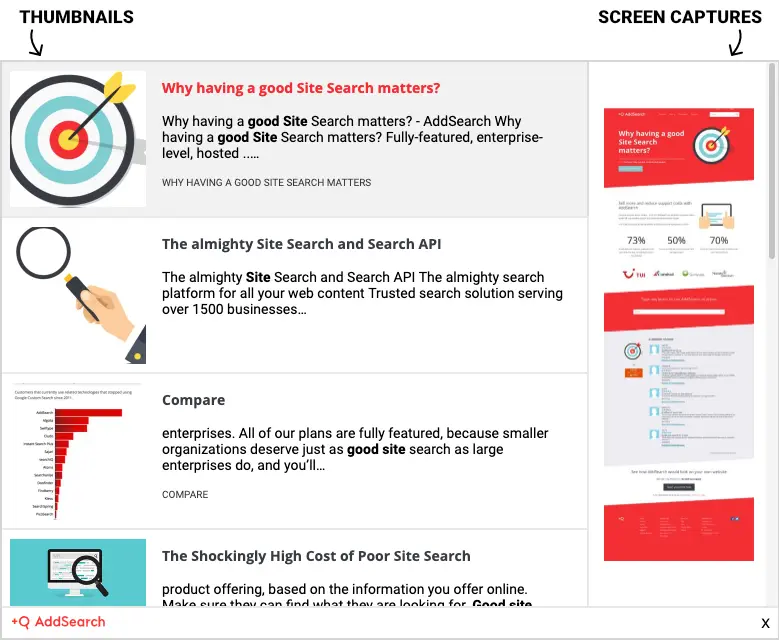
The featured image, also known as the thumbnail, appears on the left side of search results in AddSearch's ready-made views. Displaying a relevant image enhances the visual appeal of your search listings.
How AddSearch Selects Featured Images
By default, AddSearch indexes the image specified in the og:image meta tag of your page. If this tag is not found, AddSearch's crawler selects an image located near the main content area of your web page.
Setting the og:image tag ensures consistent control over which image appears as a search result thumbnail.
Define the Featured Image Using Meta Tags
Using the og:image Meta Tag
Include the og:image meta tag within the <head> section of your webpage's HTML. This tag specifies the URL of the image to use as the featured thumbnail.
<head>
  <meta property="og:image" content="https://example.com/path-to-your-image.jpg" />
  <!-- other head elements -->
</head>
Using the twitter:image Meta Tag
AddSearch also supports defining the featured image with the twitter:image meta tag. Include it similarly within the <head> section:
<head>
  <meta name="twitter:image" content="https://example.com/path-to-your-image.jpg" />
  <!-- other head elements -->
</head>
Enable or Disable the Featured Image in Your AddSearch Account
The featured image feature is included in all subscription plans and is enabled by default.
To change its status:
- Log in to your AddSearch Account.
- Navigate to Setup > Domains and crawling.
- Find the Featured image section.
- Use the toggle switch next to Og:image tag to enable or disable the featured image display.
- Click Save to apply your changes.
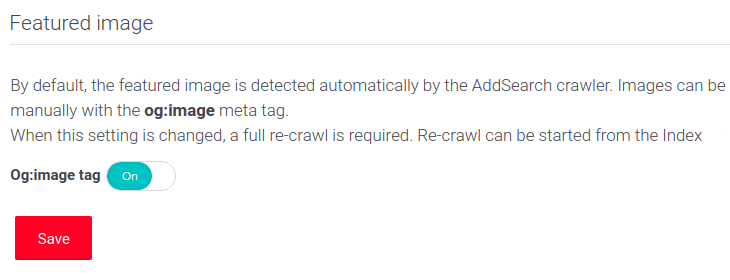
Image Size Recommendations and Cropping Behavior
- Minimum image size: 140 x 140 pixels
- Recommended image size: 272 x 272 pixels (to maintain quality on high-resolution displays)
Thumbnails should ideally be square with no dimension more than three times the length of the other side.
By default, AddSearch resizes and crops the image specified in the og:image tag to 272 x 272 pixels before displaying it.
Prevent Image Cropping
If you prefer to pad the image (add whitespace) instead of cropping, add the attribute data-addsearch="no_crop" to your <img> tag. Example:
<img src="https://example.com/path-to-your-image.jpg" alt="Description" data-addsearch="no_crop" />
This attribute instructs AddSearch's indexer not to crop the image during processing.
Additional Resources
For detailed guidance on optimizing your search results with metadata tags, see Meta tags for indexing.