Installing the Widget View
The AddSearch Widget view enables a search-as-you-type experience, displaying search results immediately below the search field.
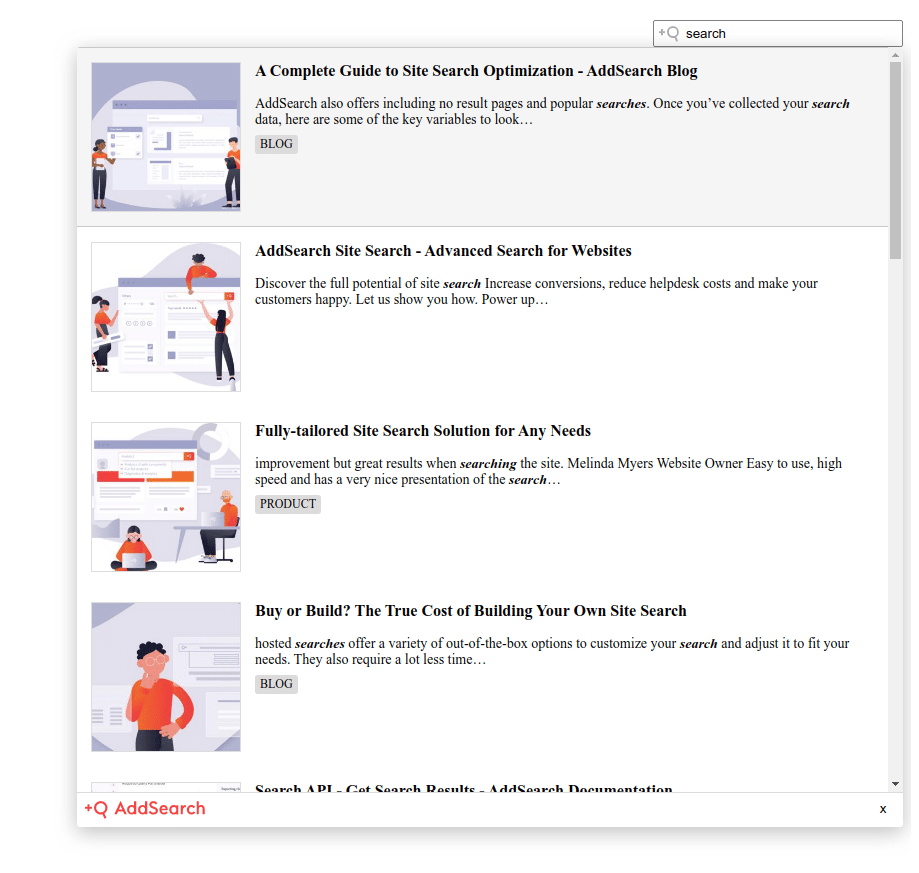
You can customize the Widget's features using the Search Designer, including search suggestions with autocomplete and automatic language detection.
Installation overview
Installing the Widget involves these main steps:
- Locate where to add the search script in your website's HTML or template files.
- Configure the Widget using the Search Designer and export the installation script.
You can also:
- Use the Widget with your own existing search input field and styling.
- Add multiple search input fields on the same page.
Step 1: Locate the script insertion point on your website
Find the HTML template file in your CMS where the search input field or form is defined. Common menu locations include "Theme," "Template," "Design," or "Appearance".
- For WordPress sites, check under Appearance » Editor in the dashboard.
If your site already has a search form, locate the <form> HTML element that contains it (for example, <form id="searchform">).
Replace the entire search form HTML—from the opening <form> tag to its closing </form> tag—with the AddSearch Widget installation script.
Step 2: Configure the Widget and export the script
- Visit the Search Designer tool at https://designer.addsearch.com/search-designer/widget.
- Enter your Site key to link the Widget to your search index.
- Customize Widget options according to your preferences.
- Click Apply changes to save your configuration.
- In the Search Designer, select Installation script from the top-right menu.
- Click Copy script to copy the installation snippet to your clipboard.
- Paste the script into the location identified in Step 1 within your website’s template.
- Save your template changes.
Example installation script
<!-- AddSearch Widget script example; replace #### with your Site key -->
<script type="text/javascript">
  window.addsearch_settings = { "####": { /* widget options */ } };
</script>
<script async src="https://cdn.addsearch.com/js/widget.js?site=####"></script>
Using your own search input field
You can attach the AddSearch Widget to an existing search input field on your site, preserving your styling.
- Follow Steps 1 and 2 above to configure the Widget and add the installation script.
- Add the attribute
data-addsearch-id="your-id"to your search input element.
The your-id value must match the ID used in the window.addsearch_settings object and the installation script's parameters. The default Widget ID is asw_01.
Example of linking the Widget to your own input field
<input type="search" data-addsearch-id="asw_01" placeholder="Search..." />
<script type="text/javascript">
  window.addsearch_settings = { "asw_01": { /* options */ } };
</script>
<script async src="https://cdn.addsearch.com/js/widget.js?site=####&id=asw_01"></script>
Note: Ensure the installation script is placed after your search input element in the HTML source.
Using multiple search fields
To use multiple search inputs on the same page with separate AddSearch Widgets:
- Configure each Widget instance with unique IDs.
- For each search input, add a distinct
data-addsearch-idattribute. - Define the corresponding entries in
window.addsearch_settingswith matching keys. - Include the installation script for each Widget instance with the matching ID parameter.
Example for multiple Widgets with ID asw_01
<input type="search" data-addsearch-id="asw_01" placeholder="Search site A" />
<input type="search" data-addsearch-id="asw_02" placeholder="Search site B" />

<script type="text/javascript">
  window.addsearch_settings = {
    "asw_01": { /* options for site A */ },
    "asw_02": { /* options for site B */ }
  };
</script>
<script async src="https://cdn.addsearch.com/js/widget.js?site=####&id=asw_01"></script>
<script async src="https://cdn.addsearch.com/js/widget.js?site=####&id=asw_02"></script>
Add the Widget instances anywhere within the <body> of your page.
For further customization and advanced options, visit the AddSearch Search Designer.
Note: Verify your installation by testing the live search function on your site after adding the Widget script.