Installing AddSearch on Sitefinity
AddSearch provides instant search functionality for your website. You can integrate AddSearch into your Sitefinity site by following these steps.
Step 1: Obtain Your Site Key
- Log in to your AddSearch Account.
- Navigate to Setup > Keys and installation.
- Copy the Your Site Key value.
Step 2: Configure the Search Widget
- Visit the AddSearch Search Designer.
- Customize the search widget to fit your website's style and requirements.
- Copy the generated installation script.
Step 3: Add AddSearch to Your Sitefinity Site
Update Content Security Policy
- Log in to your Sitefinity Admin panel.
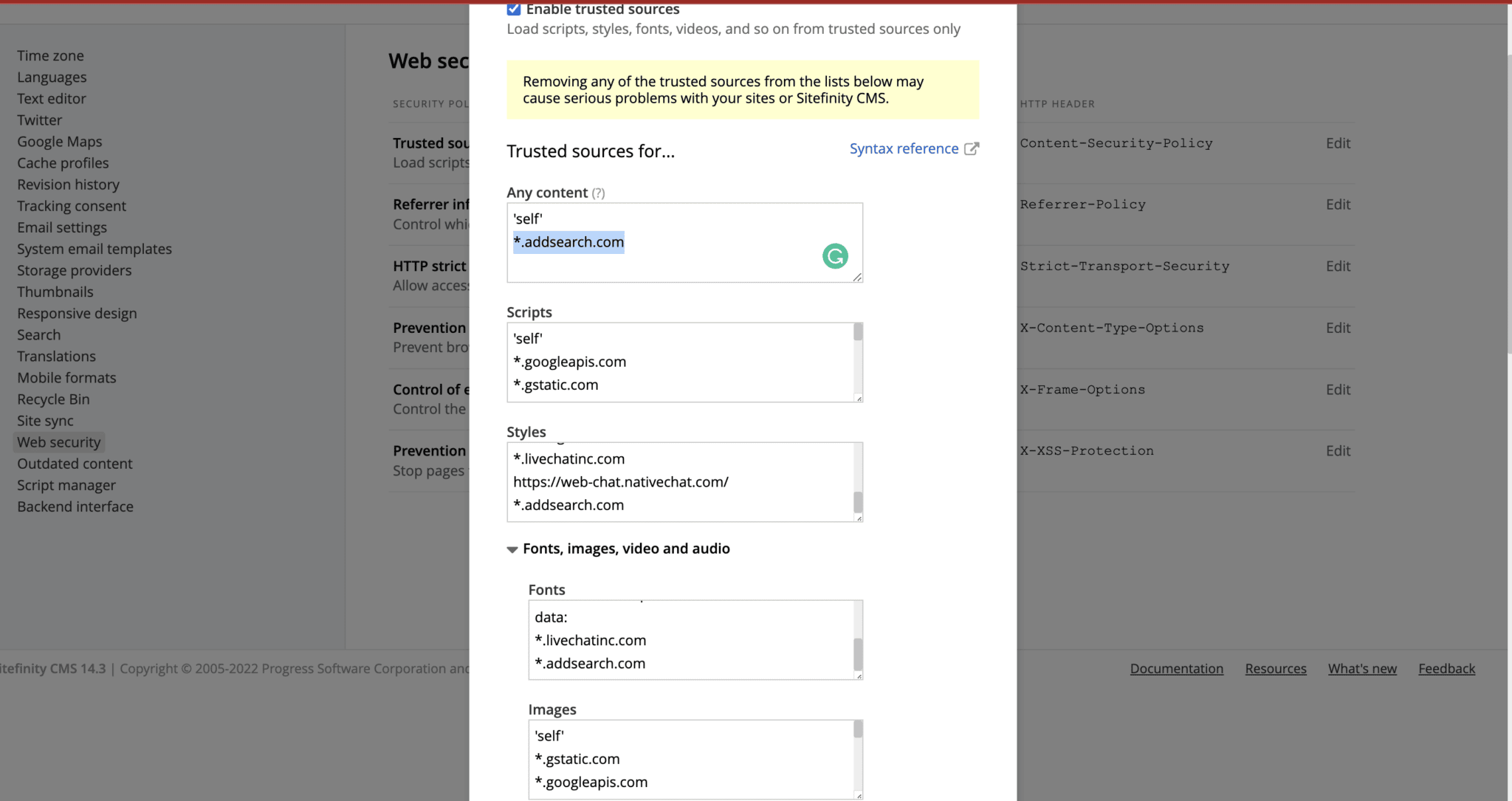
- Go to Administration > Settings > Web Security.
- Under the Trusted Sources section, find Content-Security-Policy settings.
- Add
*.addsearch.comto all relevant sub-sections to allow loading scripts and resources from AddSearch.
Embed the Search Widget Code
- Navigate to the page where you want to display the search.
- Click Edit Content.
- Select Embed Code under Scripts and Styles.
- Drag and drop the Embed Code widget to the desired location on the page.

- Click the Embed Code widget and paste the AddSearch script you copied from the Search Designer.
- Save the widget and publish the page.

Step 4: Verify the Integration
After publishing, visit the page to confirm the search bar appears and operates as expected.

For additional help, refer to the AddSearch dashboard and support resources.