Installing AddSearch on a Drupal Website
Follow these steps to add AddSearch instant site search to your Drupal site quickly.
Get Your Site Key
- Log in to your AddSearch Account.
- Navigate to Setup > Keys and installation.
- Copy the Your Site Key value.
Configure Search Widget
- Use the AddSearch Search Designer to customize your search widget.
- After configuring, copy the provided installation script snippet.
Add AddSearch Script to a Drupal Page
-
Log in to your Drupal Admin dashboard.
-
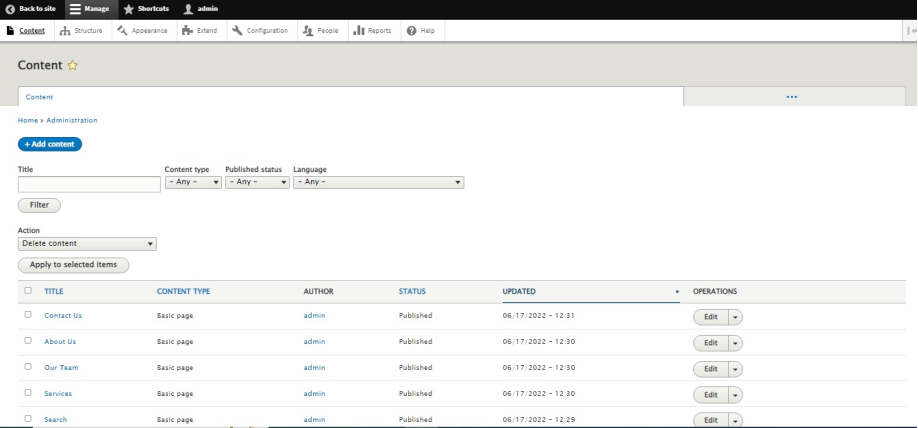
Go to the Content section via the top admin menu.
-
Choose to Add Content or Edit an existing page.
-
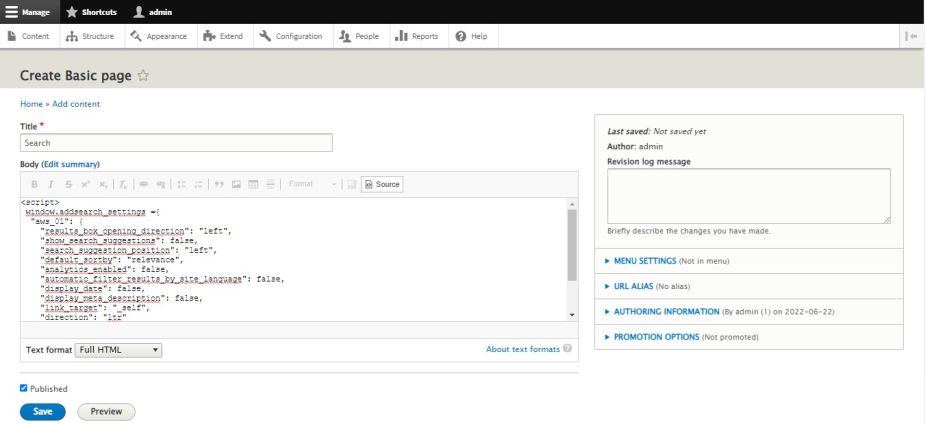
In the content editor, click the Source button to view the HTML source.
-
Paste the AddSearch script snippet where you want the search bar to appear.
-
Save your changes.
-
Your search box is now live. Test it by entering text into the search field.
Add AddSearch as a Drupal Block
-
Log in to Drupal Admin.
-
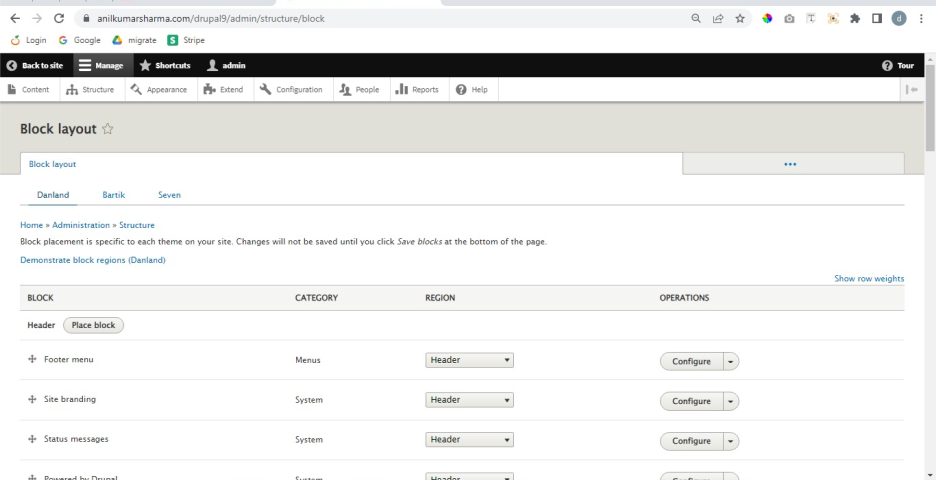
Navigate to Structure > Block Layout.
-
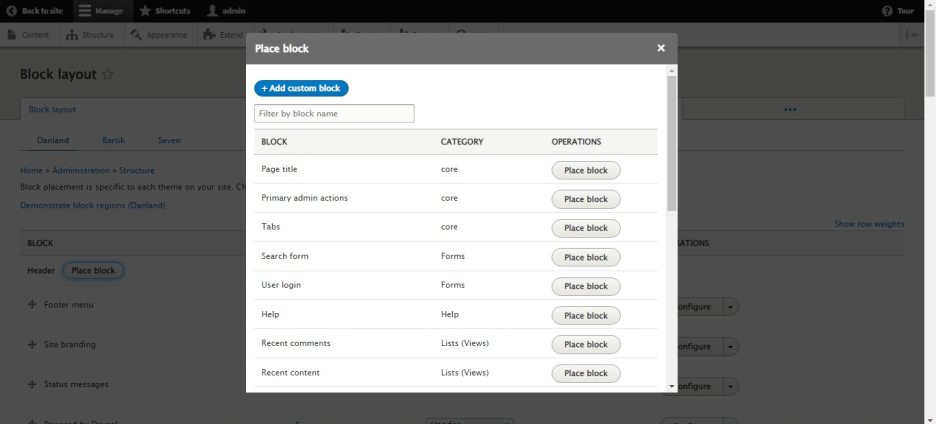
Click Add Custom Block.
-
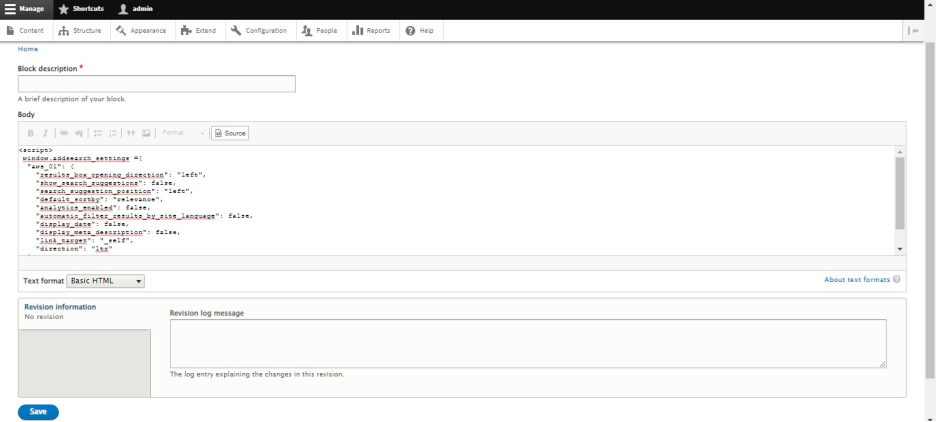
Enter a Description for your block.
-
Click the Source button in the block body editor.
-
Paste the AddSearch script snippet into the body.
-
Select Full HTML from the Text Format dropdown.
-
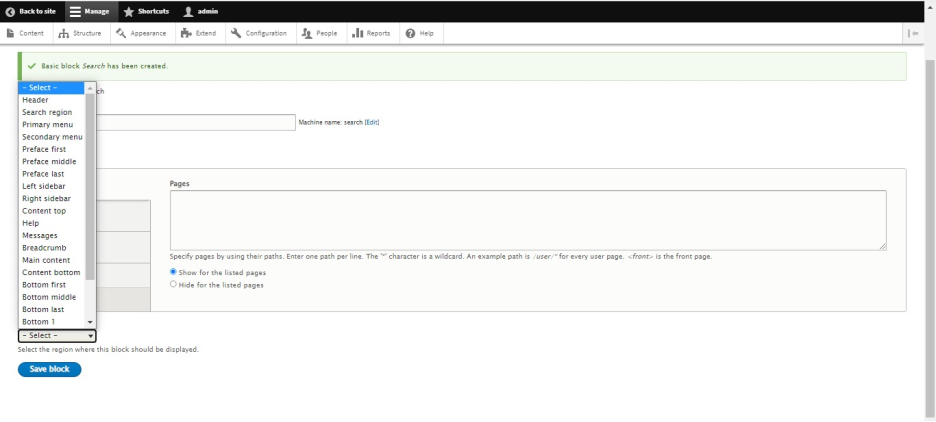
Set the Region Settings to where you want the block displayed (e.g., header).
-
Click Save to add the block.
-
The AddSearch box is now available as a block on your site.
For further customization, revisit the Search Designer tool anytime to update your widget's appearance or behavior.
Note: Confirm that your Drupal site uses compatible text formats and permissions to allow adding custom scripts in blocks or pages.