Installing AddSearch on Your Shopify Website
Note: AddSearch offers a native Shopify app that integrates easily with Shopify stores. This guide covers manual installation by adding the AddSearch script, but using the app is recommended for simpler management.
AddSearch provides instant search results starting from the first keystroke. To add AddSearch to your Shopify site manually, you will insert the AddSearch script into your theme files.
If you need advanced filtering options like price ranges or add-to-cart buttons within search results, consider using the Search UI library. Documentation is available at AddSearch Search UI GitHub.
For support or custom implementations, contact AddSearch support.
Step 1: Obtain Your Site Key and Script
- Log in to your AddSearch Account.
- Navigate to Setup > Keys and installation.
- Copy your Site Key labeled "Your Site Key."
- Use the Search Designer tool to customize your search widget.
- Copy the generated installation script from the tool. It will look similar to this example:
<script>
  (function(w,d,s,o,f,js,fjs){
    w['AddSearchObject']=o;w[o]=w[o]||function(){
      (w[o].q=w[o].q||[]).push(arguments)},w[o].l=1*new Date();
      js=d.createElement(s),fjs=d.getElementsByTagName(s)[0];
      js.async=1;js.src=f;fjs.parentNode.insertBefore(js,fjs);
  })(window,document,'script','addsearch','https://cdn.addsearch.com/js/addsearch-widgets.js');

  addsearch('init', 'YOUR_SITE_KEY');
  addsearch('search');
</script>
Replace YOUR_SITE_KEY with your actual site key.
Step 2: Access Your Shopify Theme Code
- Log in to your Shopify admin panel.
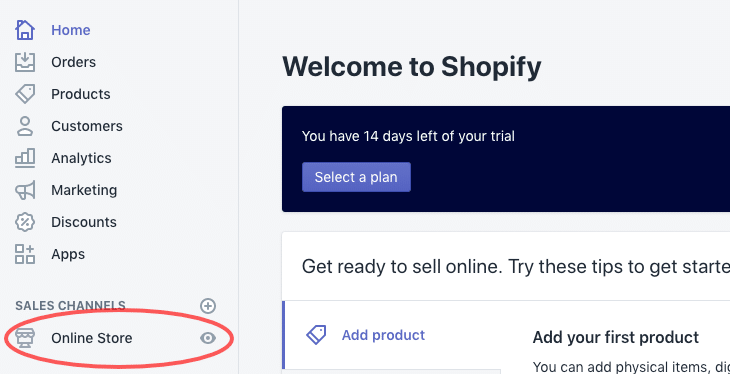
- From the sidebar, click Online Store.
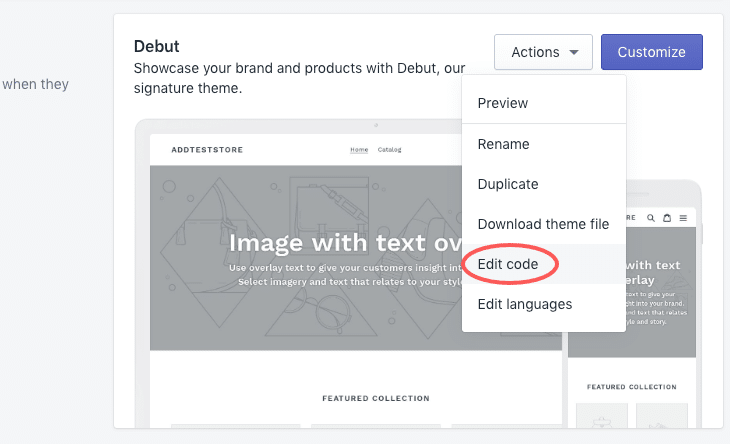
- Click the Actions drop-down menu on your active theme and select Edit code.
Step 3: Remove the Default Search
Shopify themes usually include a default search bar in the header section.

To avoid conflicts, you need to remove or comment out this search code before adding AddSearch.
Step 4: Insert AddSearch Script Into Header
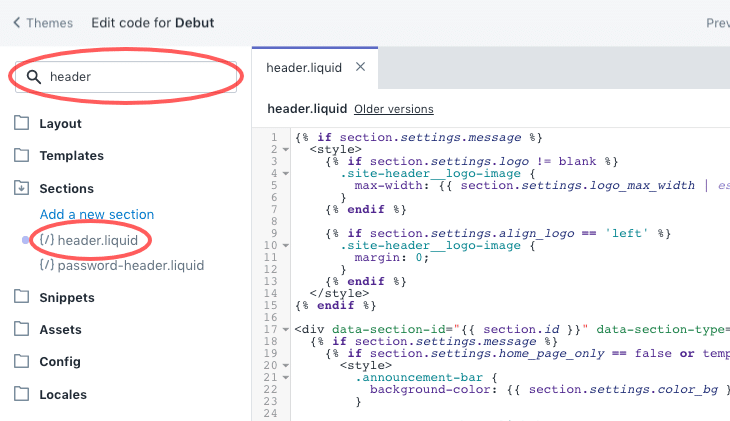
- In the code editor's search box, enter
headerand open theheader.liquidfile under the Sections folder.
-
Locate the section of code responsible for the search form or input.
-
Remove or comment out this existing search code.
-
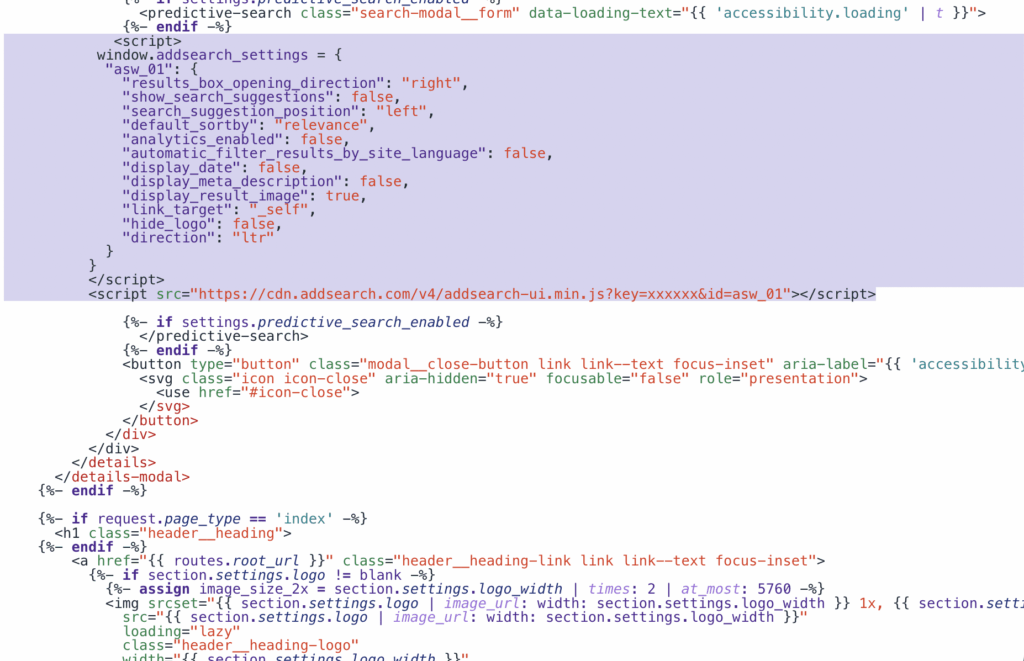
Paste your AddSearch installation script from Step 1 where the search bar appeared.
Example illustration:
Step 5: Save and Preview
- Save the changes to
header.liquid. - Open your Shopify store in a new browser tab and test the search bar.
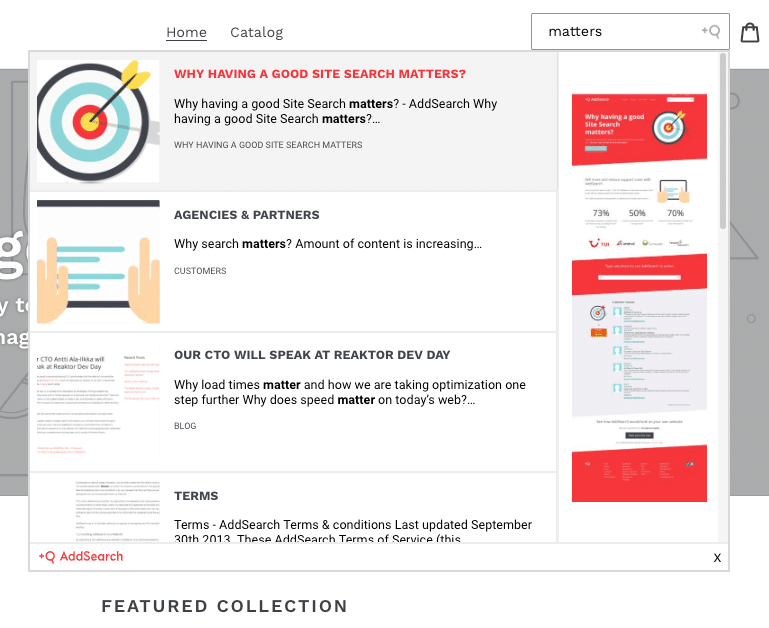
If the search works as expected, your installation is complete.
For further customization or troubleshooting, explore the Basic Installation guide or reach out to AddSearch support.