Installing AddSearch Plugin on a WordPress Website
The AddSearch WordPress plugin enables you to replace your site's default WordPress search with AddSearch’s fast and customizable search.
You can add the AddSearch search bar anywhere on your site using the shortcode [addsearch]. Note that if you use the Gutenberg editor, the built-in search component is not automatically replaced; instead, insert the [addsearch] shortcode where you want the search bar.
Installation Steps
- Create an account and sign up for an AddSearch trial using the email associated with your WordPress site.
- During setup, when prompted by the installation wizard:
- Choose Index my website.
- Select Set up crawling.
- Enter your website's URL.
- Click Begin crawling.
- Open the AddSearch dashboard and navigate to Setup → Keys and Installation.
- Copy your Public Site Key under Your Site Key.
- In your WordPress admin interface:
- Install and activate the AddSearch plugin.
- Go to Settings → AddSearch.
- Paste the Site Key and click Save.
- Choose whether to use the default search-as-you-type widget or a separate results page for searches.
- Test your website search function:
- If you see the AddSearch bar in the bottom left corner, it indicates search is not enabled in your theme. Enable search in your theme settings.
- Optionally, add the
[addsearch]shortcode on any page, post, or widget area to display the search bar there.
You have completed the setup.
Using the AddSearch Shortcode
Use the [addsearch] shortcode to insert multiple search fields anywhere on your website, including pages, posts, or navigation menus.
Learn more about WordPress shortcodes in the Shortcode Block documentation.
Customizing Search Input Field Appearance
To change the look and feel of the AddSearch input field, use WordPress’s Additional CSS feature:
- Log in to your WordPress Dashboard.
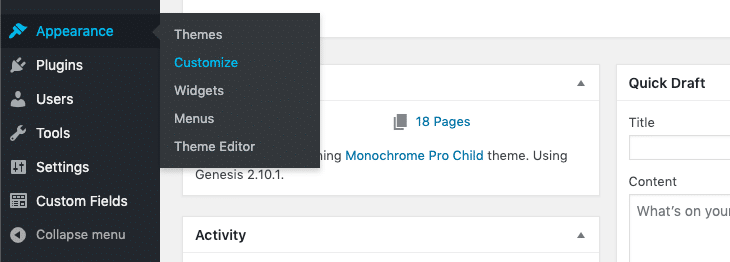
- Hover over Appearance and click Customize.
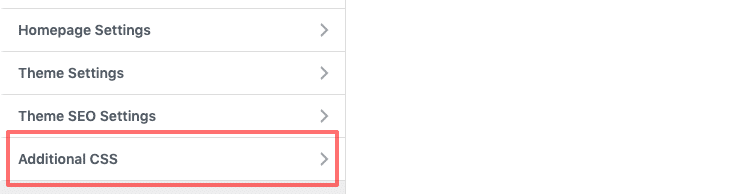
- Click Additional CSS at the bottom left.
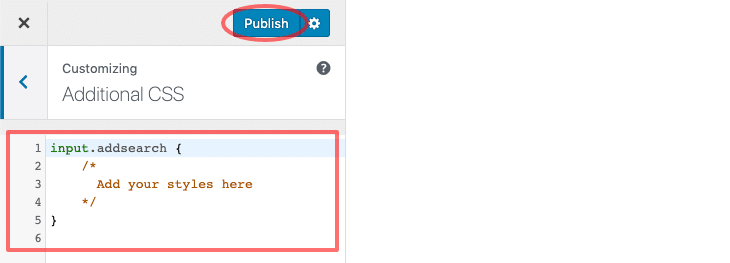
- Add CSS rules targeting
input.addsearchinside the editor, for example:
input.addsearch {
    /* Add your custom styles here */
}
- Click Publish to apply your changes.
For detailed CSS guidance, see the WordPress CSS documentation.