Quick Install
This guide shows how to quickly add a search-as-you-type Widget to your website. The Widget displays search results immediately below the search field as users type.
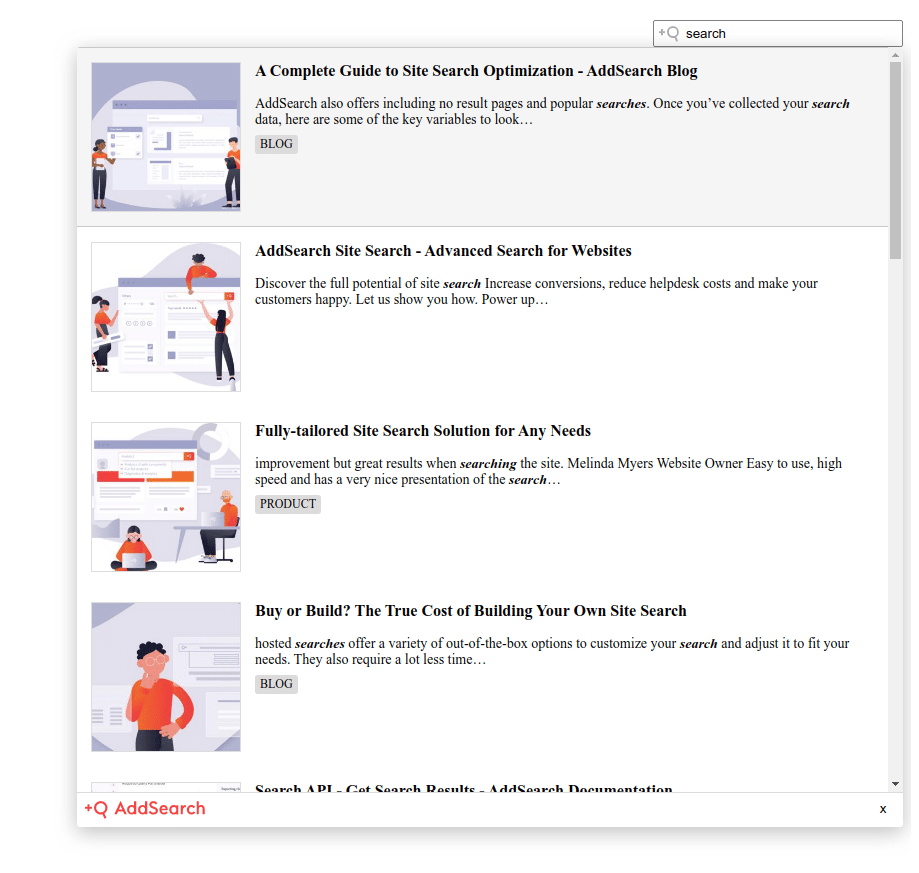
Instructions
- Copy the following script line and replace
####with your site key. This key connects the Widget to your search index.
<script async src="https://cdn.addsearch.com/js/4/###.js"></script>
Note: Replace
###in the script URL with your actual site key.
-
Paste this script tag into the HTML source of your website where you want the search widget to appear. This can be in your site's template file or directly in a specific page's source code.
-
If your website uses a CMS, locate your site template or theme editor. Common menu locations include "Theme", "Template", "Design", or "Appearance". For WordPress, go to the Dashboard under Appearance > Editor.
-
If your website already has a search form, find the relevant
<form>element in your template or page source. It typically looks like<form>followed by input fields and ends with</form>. -
Replace the entire existing
<form>...</form>block with the AddSearch script snippet from step 1.
By following these steps, your site will have an instant search-as-you-type functionality powered by AddSearch.
If you want to see a live example of how the quick installation works, refer to AddSearch's demonstration resources or contact support for a demo link.
For more detailed integration options or customization, see other AddSearch documentation sections.