Pinned Results: Curate Search Results for Specific Keywords
Pinned results allow you to manually select and order specific search results for a given keyword. When a visitor searches using that keyword, AddSearch displays your pinned results before other results.
Use pinned results to highlight important pages, such as a product page along with its review and spec sheet, ensuring they appear prominently in search results.
How to Set Up Pinned Results
Follow these steps to pin and arrange search results for a keyword:
-
Log in to your AddSearch account.
-
Navigate to Manage results > Pinned results in the dashboard.
-
Enter a keyword in the search field and press Enter.
-
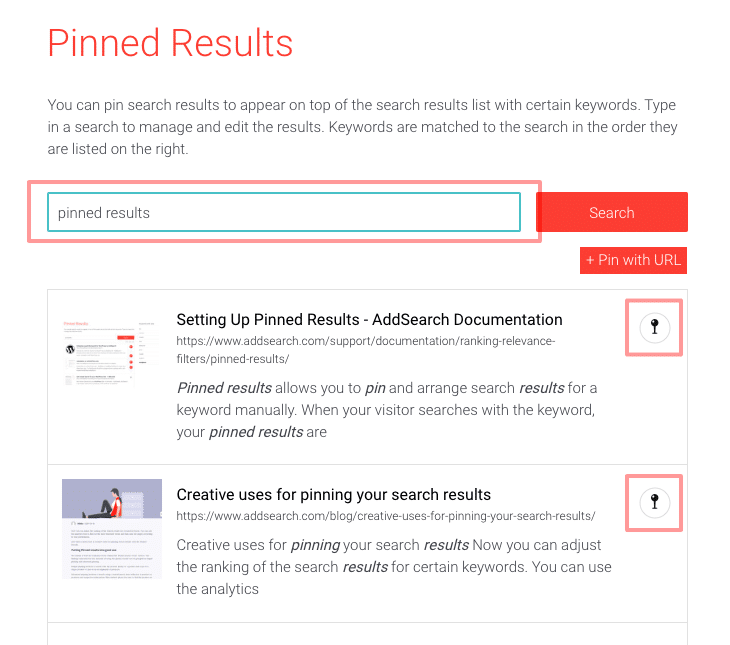
Click the pin icon next to each result you want to feature.
-
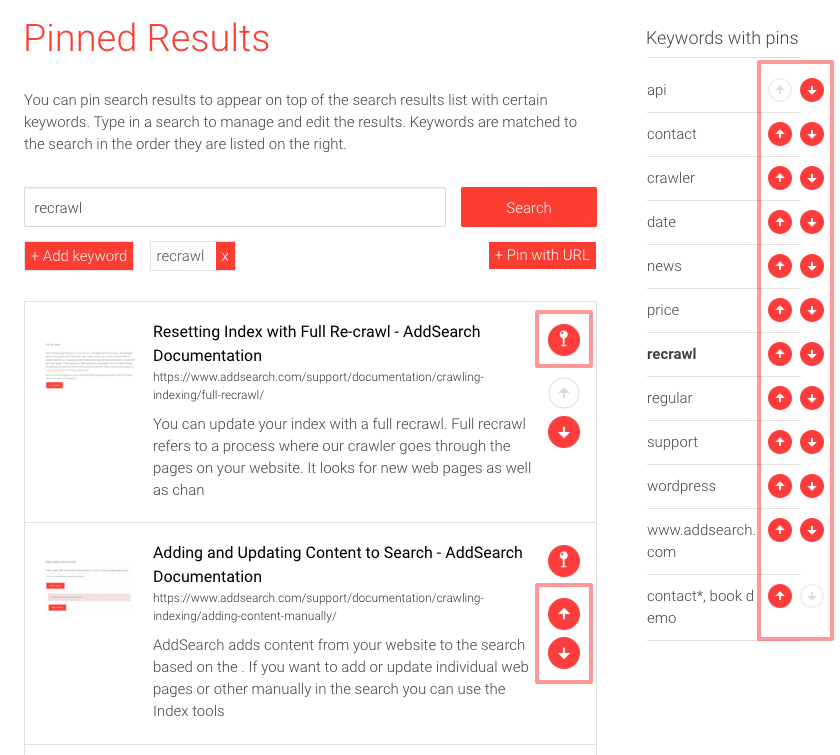
Rearrange pinned results by clicking the arrow icons next to the search results.
-
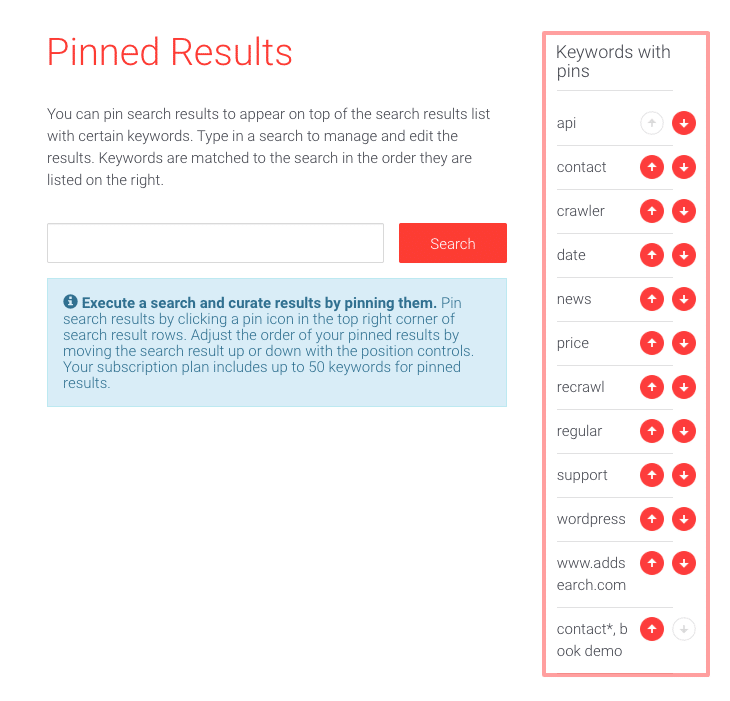
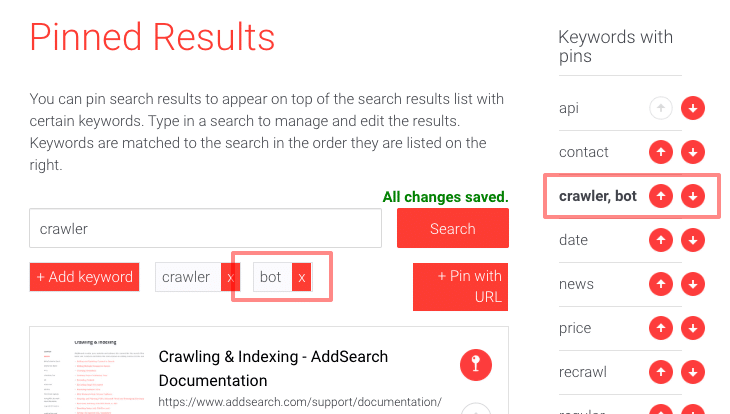
Rearrange keywords with pinned results using the arrow icons on the right side.
-
To unpin a result, click the activated pin icon again.
-
To remove all pinned results for a keyword, uncheck all pins associated with that keyword.
Adding Multiple Keywords (Aliases) to Pinned Results
Aliases let you associate additional keywords with an existing set of pinned results. This broadens the range of search terms that trigger the pinned content.
Note: You must have at least one keyword with pinned results before adding aliases.
To add an alias keyword:
-
In Keywords with pins, select the pinned result you want to edit.
-
Click + Add keyword.
-
Enter the new alias keyword.
-
Click Add keyword to save.
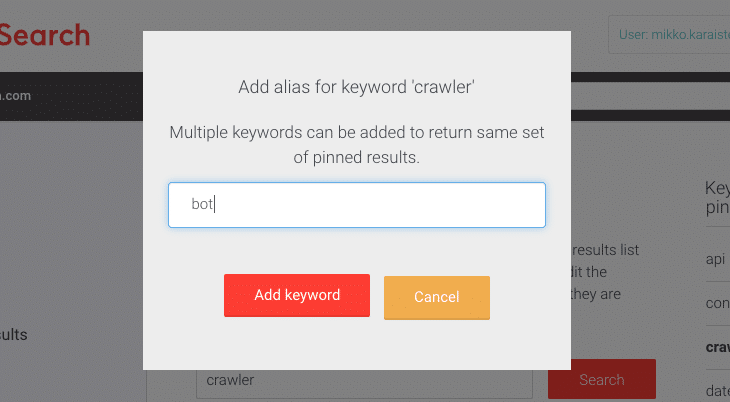
You will see the alias keyword added below the search input field and listed in Keywords with pins. To remove an alias, click the X next to it.
Pinning a Specific URL as a Result
Instead of pinning a search result, you can directly pin a URL of an indexed page. This lets you target exact pages to display for specific keywords.
To pin a URL:
- Enter the keyword in the search field and press Enter.
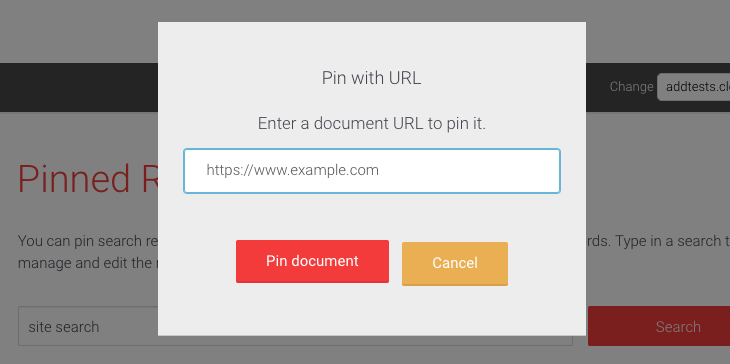
- Click the + Pin with URL link below the search button.
- Paste the URL of the page you want to pin.
- Click Pin document to save.
Make sure the URL is indexed. Check the page status on the Index tools page. If the status shows EXCLUDED, use a duplicate URL that is indexed.
Styling Pinned Results
Customize the appearance of pinned results using the CSS class addsearch-result-type-pinned.
For example, to highlight pinned results with a yellow background:
.addsearch-result-type-pinned {
  background-color: #FFF792 !important;
}
Add this CSS to your site’s styles to visually distinguish pinned results from other search results.
For further assistance, refer to the AddSearch dashboard or contact support.