Configuring Search Suggestions Autocomplete
AddSearch provides autocomplete search suggestions to help your visitors find relevant results faster. When a visitor types characters into the search field, a list of search suggestions appears based on common search queries.
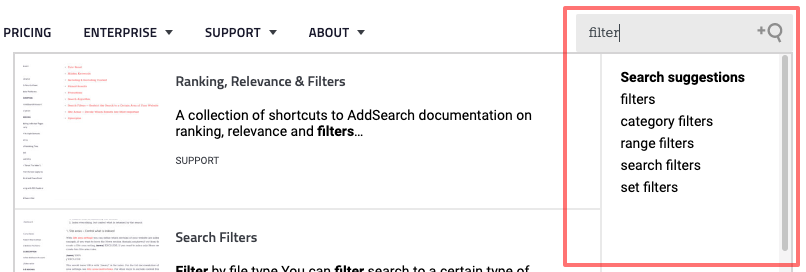
How Search Suggestions Work
- AddSearch automatically generates suggestions from searches made on your website.
- Suggestion relevance improves as more searches are performed.
- Suggestions may offer longer, more focused queries to reduce typing effort.
- These suggestions are especially useful for visitors on mobile devices with limited typing convenience.
For example, typing "guitar" may suggest queries like "acoustic guitar," "acoustic guitar straps," or "acoustic guitar strings extra light."
Along with automatic suggestions, AddSearch lets you manage suggestions using custom fields, add custom suggestion entries, and blacklist unwanted automatic suggestions.
Steps to Enable and Manage Search Suggestions
- Log in to your AddSearch Account.
- Navigate to Setup > Search suggestions.
- Enable and configure the search suggestions settings as needed.
- Follow the installation guide to implement search suggestions on your website's search interface.
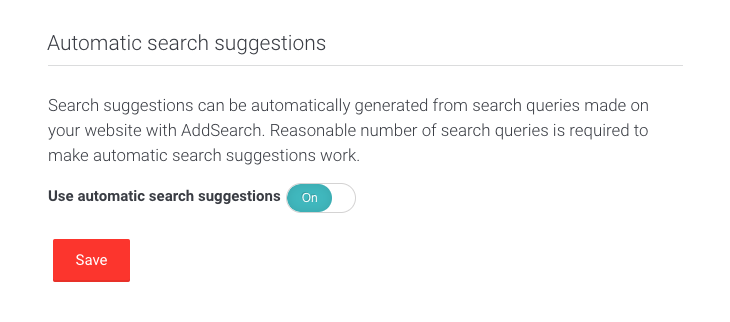
Enabling Automatic Search Suggestions
- Toggle the Use automatic search suggestions switch to enable or disable automatic suggestions.
- Click Save to apply changes.
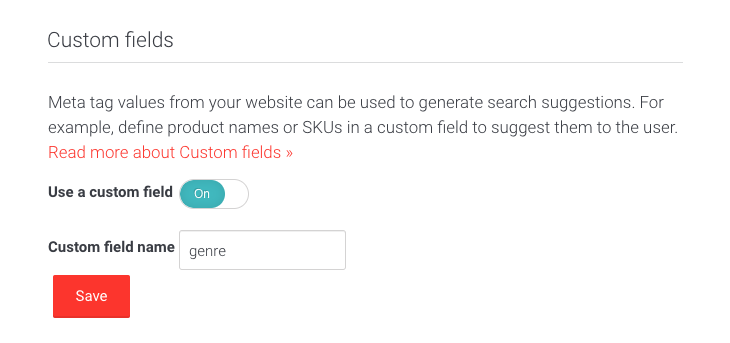
Using Custom Fields for Suggestions
- Toggle the Use a custom field switch to enable suggestions from a specific custom field.
- Enter the custom field name in the input.
- Click Save to apply.
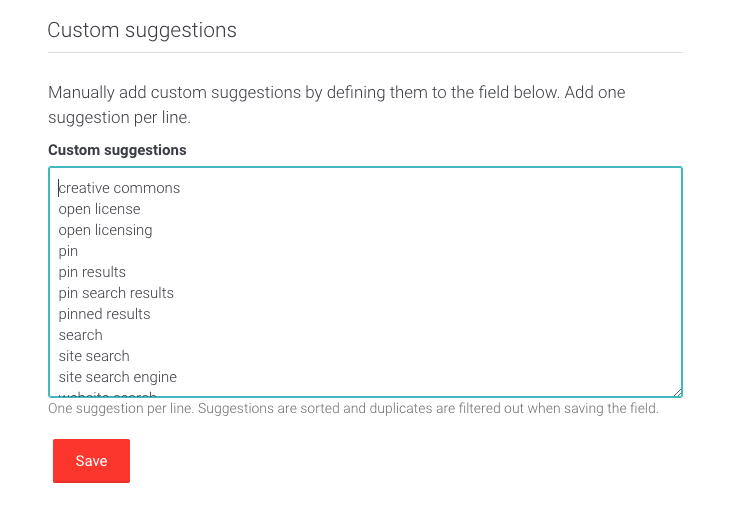
Adding Custom Suggestions
- Enter your desired search suggestions into the Custom suggestions text field.
- Click Save to update.
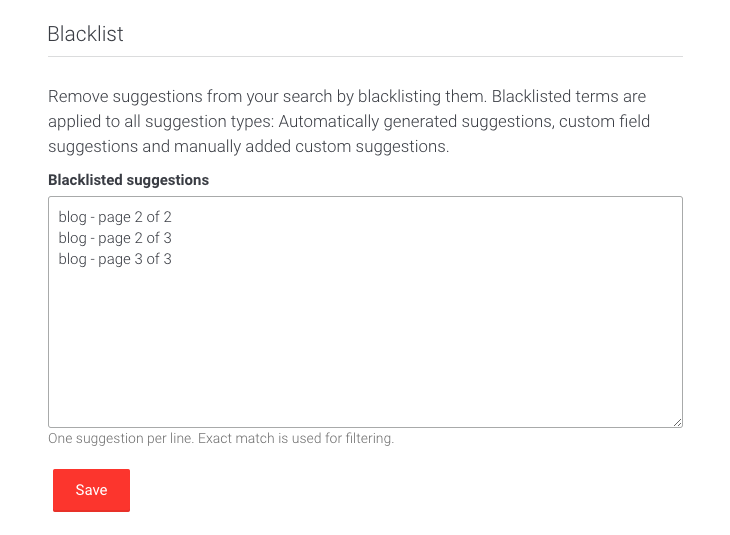
Blacklisting Unwanted Suggestions
- Enter terms you want to exclude from automatic suggestions into the Blacklisted suggestions text field.
- Click Save to block those suggestions.
For detailed guidance on implementing search suggestions in your search UI, see Implementing Search Suggestions.
For information on defining custom fields, see Defining Custom Fields.