Date Boost
Date Boost increases the ranking of your most recent pages in search results. Adjusting the decay time controls how long this boost influences the rankings—shortening or extending the period in which recent documents are prioritized.
For example:
- A news site benefits from a short decay time, pushing the newest topics above older stories.
- A company publishing regular reports can use a longer decay time to keep their latest reports ranked higher for an extended period.
Important: Specify the publishing time on your web pages. If missing, AddSearch uses the page's indexing date as a fallback.
If you prefer to sort results strictly by date, consider configuring this via the Search Designer.
Date Boost User Interface
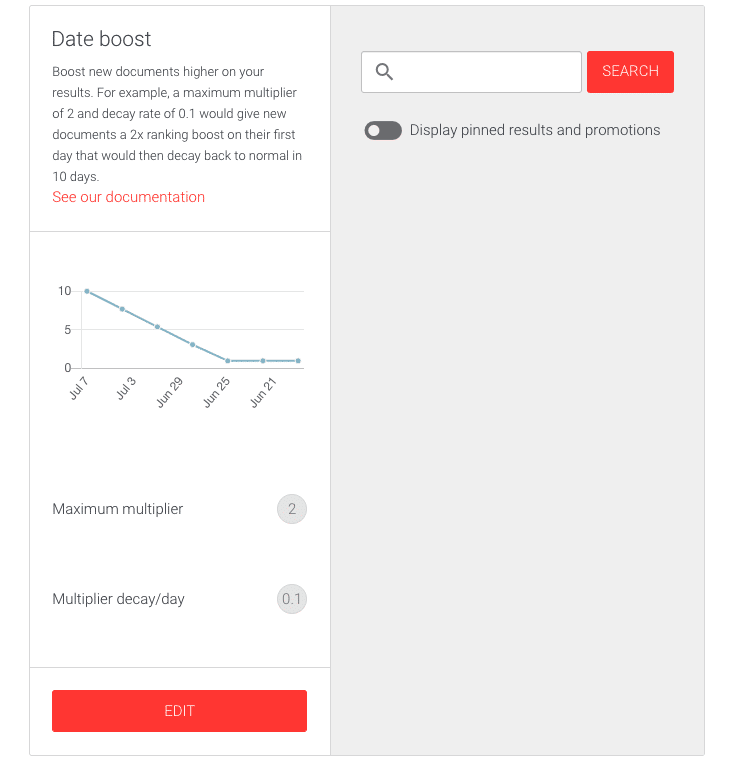
The Date Boost interface includes the following key components:
- Graph: Visualizes the boost multiplier decay over time.
- Maximum multiplier: The highest boost applied to the newest documents.
- Multiplier decay/day: The daily amount subtracted from the multiplier, reducing the boost as content ages.
On the right, you can:
- Use the search field to test how changes impact results in real time.
- Toggle visibility of Pinned results and Promotions.
How the boost multiplier works
The multiplier starts at the maximum value on the day a document is published and decreases daily by the decay value. Documents older than the decay period revert to their normal ranking score.
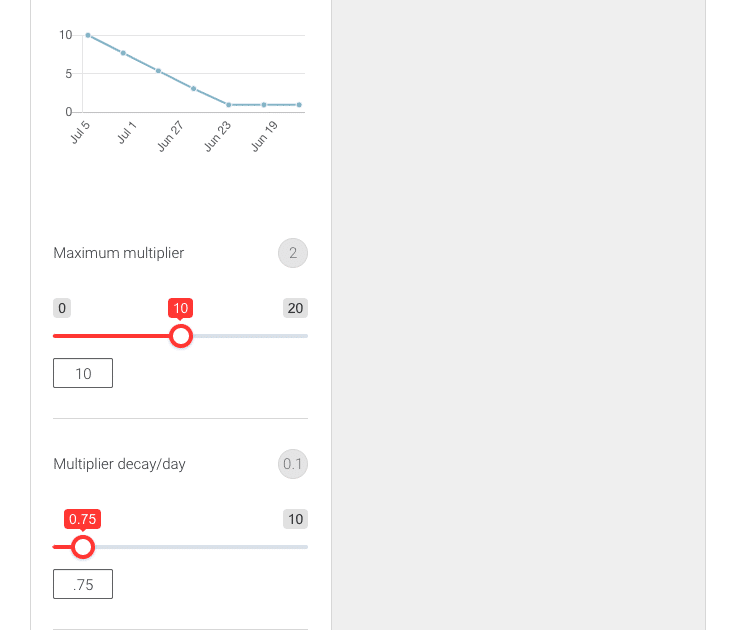
For example, with a Maximum multiplier of 10 and a Multiplier decay/day of 0.75:
- A document published today has a multiplier of 10.
- A document published yesterday has a multiplier of 9.25 (10 - 0.75).
- Documents published over 13 days ago no longer receive a boost.
How to Modify Date Boost Settings
- Sign in to your AddSearch Account.
- Navigate to Manage results > Ranking tools.
- Select Date Boost.
- Click the Edit button to open the editor.
- Adjust the Maximum multiplier and Multiplier decay/day using the sliders or input fields.
- Choose an action:
- Save to apply changes.
- Cancel to discard edits.
- Restore defaults to revert to original settings.