Custom Fields Boost
Use the Custom Fields Boost feature to increase the ranking relevance of documents based on numeric custom field values within a selected range. This is useful for emphasizing products or content that fall within specific numeric tiers, such as star ratings or price ranges.
Note: Custom fields used for boosting must contain numeric values.
Accessing Custom Fields Boost
- Log in to your AddSearch account.
- Navigate to Manage results > Ranking tools.
- Select the Custom fields boost option.
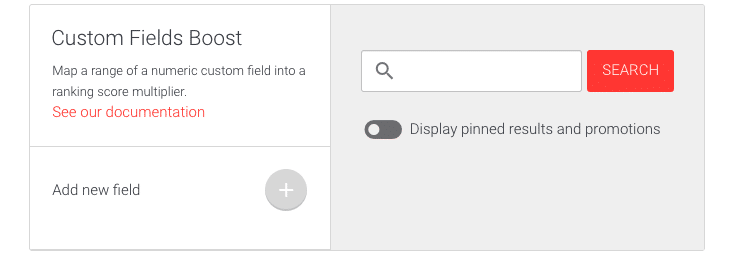
The interface shows:
- A + button to add or edit boost rules.
- A toggle switch to enable or disable the visibility of Pinned results and Promotions.
- A real-time search results preview that reflects the effect of your boost settings.
Adding a Custom Field Boost Rule
-
Click the + button to enter edit mode and add a new custom field boost.
-
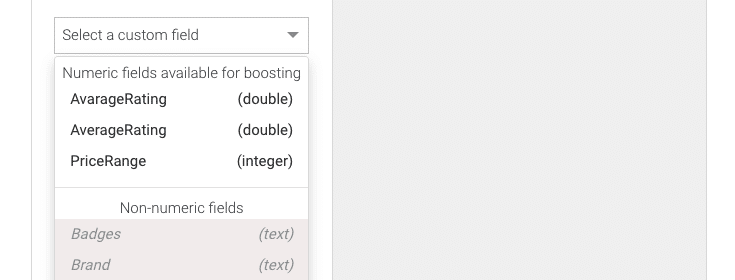
Click the dropdown labeled Select a custom field.

-
From the list, choose the custom field to boost.
-
Adjust the boost range and multiplier using the sliders or input fields:
- Set the start and end values of the numeric range.
- Define the score multiplier to amplify document relevancy.
- Use the switch to invert the boost range if needed.
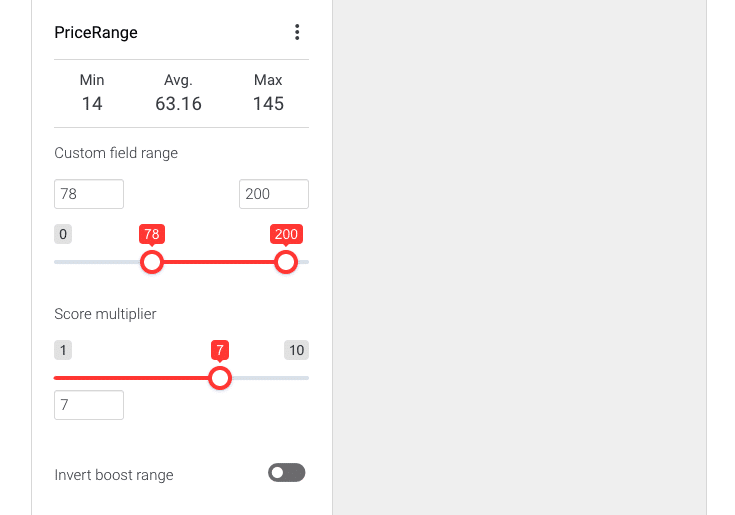
In the example, the boost multiplies relevancy by 1 for values below 78, scales linearly from 1 to 7 between 78 and 200, and multiplies by 7 for values above 200.
-
To add another boost rule, click the + button again.

-
When finished, click Save to apply changes or Cancel to discard.

Editing or Deleting Boost Rules
Each configured custom field boost has an options menu:
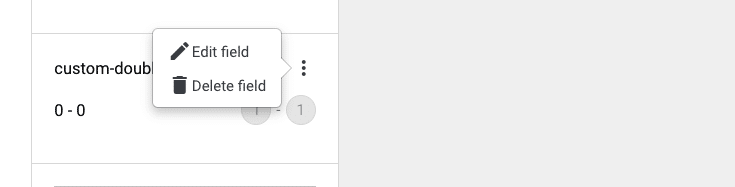
- Click the three-dot menu on the field element.
- Choose:
- Edit field to modify the settings, then save or cancel.
- Delete field to remove the boost rule immediately.
Use these steps to target and improve the search visibility of documents based on numerical custom fields efficiently.