Manage Site Areas to Boost, Lower, or Exclude Content from Search Results
Site Areas in AddSearch let you control the ranking and inclusion of your website’s pages in search results by defining rules based on URL patterns. You can:
- Boost the ranking of specific site sections
- Lower the ranking of other sections
- Exclude entire site areas or individual pages
Adjusting Ranking with Site Areas
Follow these steps to boost or reduce the ranking of a site area:
- Log in to the AddSearch Dashboard.
- Navigate to Site areas.
- Click Add new url +.
- Choose the rule type from the dropdown:
- Contains: Matches URLs that include the specified pattern (e.g.,
/blog/). - Ends with: Matches URLs ending with the specified string (e.g.,
.html,.pdf). - Regular Expression: Matches URLs based on your custom regex.
- Contains: Matches URLs that include the specified pattern (e.g.,
- Enter the pattern or regular expression.
- Select the weight from the dropdown on the right:
- Default weight is 100%.
- Select a value above 100% to boost ranking.
- Select below 100% to lower ranking.
- Click Save to apply the rule.
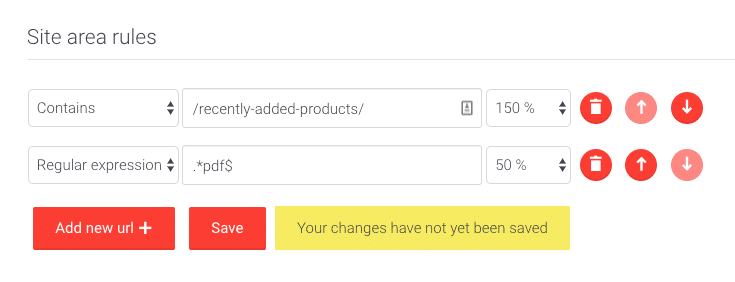
Weights apply immediately after saving.
Excluding URLs Using Site Areas
To exclude pages or sections from search results:
- Log in to the AddSearch Dashboard.
- Go to Site areas.
- Click Add new url +.
- Pick the rule type (Contains, Ends with, or Regular Expression).
- Enter the URL pattern or regex.
- Choose Excluded from the weight dropdown to exclude matching URLs.
- Save your changes.
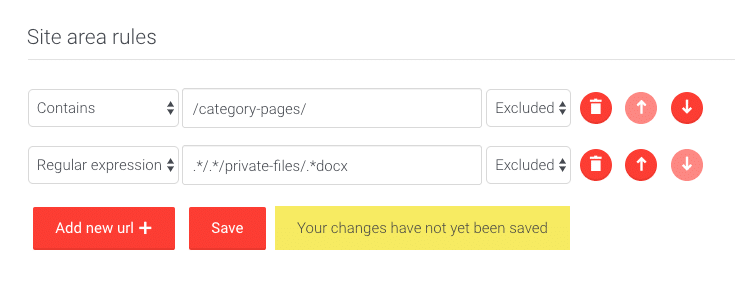
Note: Excluding URLs requires a recrawl of your site. After setting exclusions, start a full recrawl or recrawl individual URLs via the Dashboard's Index tools page to update your search index.
For more details about exclusions, see the documentation on exclusions.
How Site Areas Rules Are Applied
AddSearch processes Site Areas rules from top to bottom:
- It checks each URL against the first rule.
- If the URL matches, the rule is applied (boost, reduce, or exclude), and no further rules are checked.
- If it doesn't match, AddSearch continues to the next rule.
Example Configurations
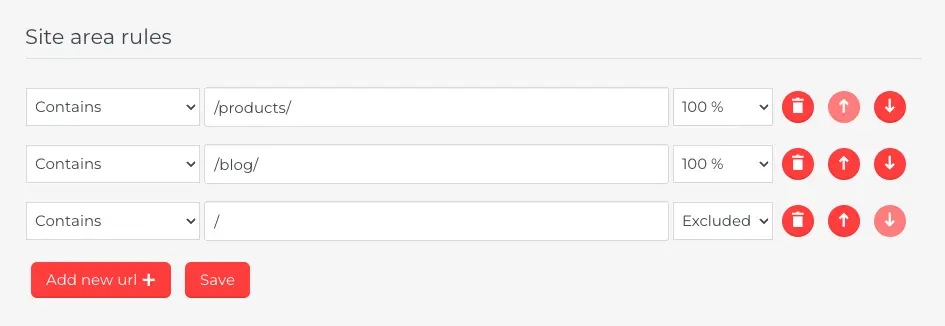
- To index only
/blog/and/products/sections and exclude all other URLs, place rules for/blog/and/products/at the top and an exclusion rule for other URLs below.
-
To boost all pages under
/products/by 150%, create a Contains rule with/products/and select weight150%. -
To reduce the ranking of all PDF files to 50%, use a Regular Expression rule with
.*pdf$and select weight50%.
Tip: Order rules carefully, placing more specific patterns above generic ones to ensure correct rule application.
Inspecting URLs Against Site Areas Rules
Use the Inspect URL tool to see which Site Areas rule applies to a URL:
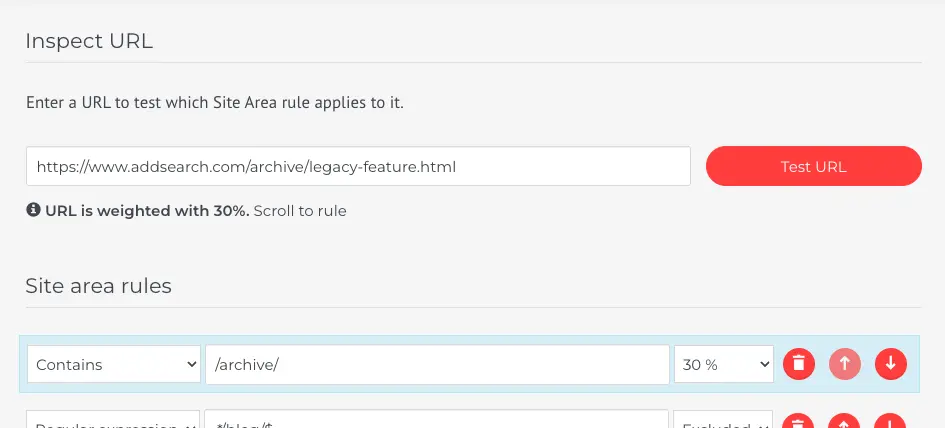
- Enter the URL in the input field under Inspect URL.
- Click Test URL.
- If the URL matches a rule, a message will indicate the matching rule.
- The matched rule will be highlighted with a blue border.
This guide helps you precisely control the visibility and ranking of different areas of your website in AddSearch results through URL-based rules.