
AI Conversations lets visitors interact with your website content through a sequence of related, turn-based questions and answers. Follow-up questions are interpreted in the context of earlier turns, allowing users to refine or narrow their request without starting a new conversation.
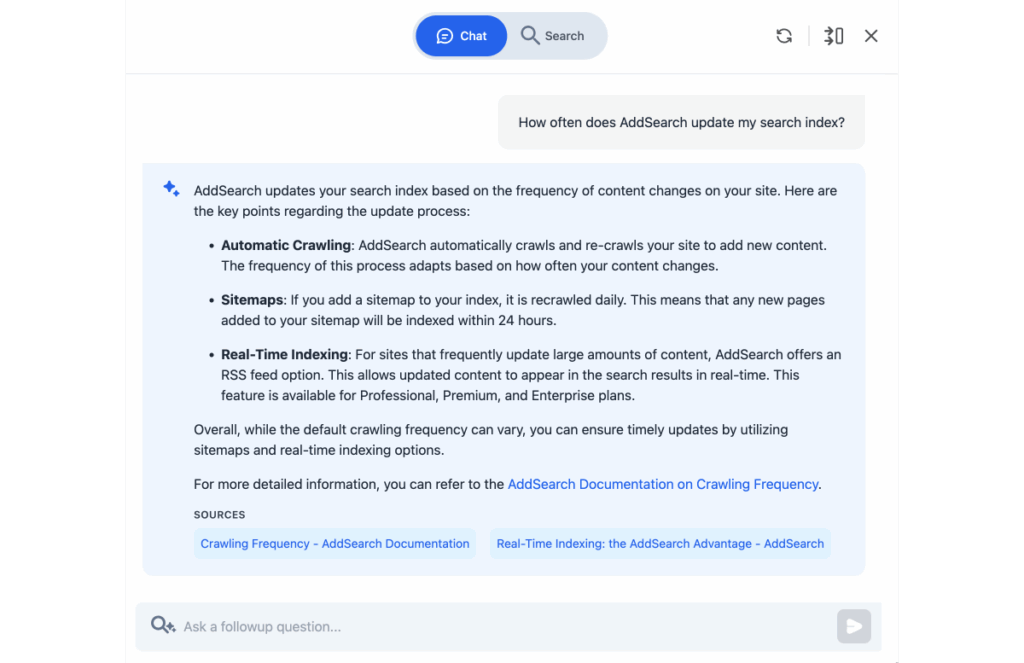
The Search view can be enabled or disabled in the widget. AI Conversations and site search are available as separate features.
Install the AI Conversations widget
You can add the AI Conversations widget to your website by including a single script tag.
In most cases, adding the script once to a site-wide template is sufficient. Add it to specific pages only if you want the widget to appear on selected pages.
Step 1: Update the script with your site key (replace ####)
<script src="https://cdn.addsearch.com/ai-conversations/v0/ready-made-conversational-search-widget.min.js?site_key=####"></script>
Step 2: Paste the script where you want the widget icon to appear
Add the script to:
- your site-wide template (recommended), or
- the specific page(s) where you want the AI Conversations icon to appear.
After the script loads, the AI Conversations widget is available to visitors on these pages.
Widget behavior
Header and Navigation:
- Default view: The AI Conversations icon appears on the page.
- Open behavior: Selecting the icon opens the widget as a panel on the right side of the page.
- Controls:
- Clear chat history: Starts a new conversation.
- Full-screen / sidebar toggle: Switches between full-screen and side-panel modes.
- Close: Closes the widget.
Input field behavior:
- Before submitting any questions, the input field appears below the header controls.
- After a question is submitted, the input field moves below the conversation history, allowing continuous interaction.
Where to edit templates in common CMS tools
Most content management systems place templates under menus like:
- Theme
- Template
- Design
- Appearance