Installing the AddSearch Recommend Widget
Use AddSearch Recommend to show personalized recommendations to your website visitors based on your dashboard configurations. This guide explains how to publish the widget in the AddSearch dashboard and embed it on your site.
Publish the widget
- Log in to the AddSearch dashboard.
- Create a new AddSearch Recommend widget.
- Set up the required parameters according to your recommendation strategy.
- Click Save and preview to verify your settings.
- Click Publish to make the widget live.
When the widget is published, the dashboard will display a script tag for installation, which you can copy to your clipboard.
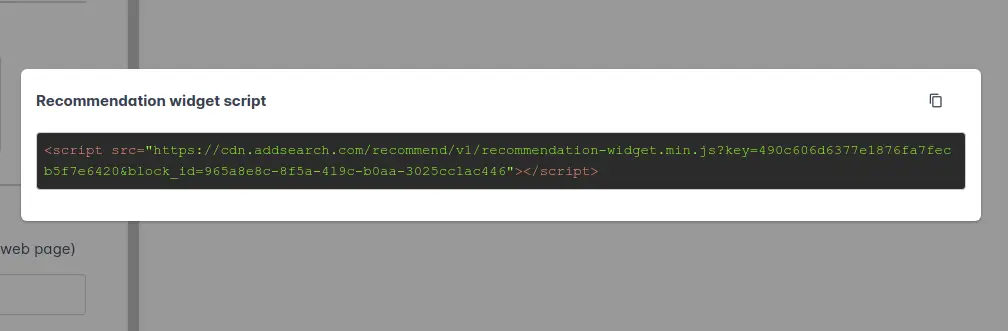
Add the widget code to your website
Paste the provided one-line <script> tag into your website’s template or page source code where you want the recommendations to appear. This typically involves editing the HTML template through your CMS. For example:
- In WordPress, templates are usually accessible via the dashboard under Appearance > Editor.
- Other CMS platforms may use menus named Theme, Template, Design, or Appearance.
Example installation script:
<script src="https://cdn.addsearch.com/recommend/widget.js" data-widget-id="YOUR_WIDGET_ID"></script>
Replace YOUR_WIDGET_ID with the actual widget ID given in the dashboard.
Product recommendation widgets
If your widget targets product pages, ensure the script is included only on pages with a product ID or SKU that matches your widget configuration.
Refer to the following for detailed setup:
- Product widget configuration guide
- Global widget configuration guide
- Identifying CSS selectors for product SKUs or IDs
Need help?
Contact AddSearch support at support@addsearch.com if you have any difficulties during installation.