
AI Answers provides AI-generated responses based on your indexed content. This guide describes how to implement AI Answers on your website using the AddSearch JavaScript Client and the Search UI Library.
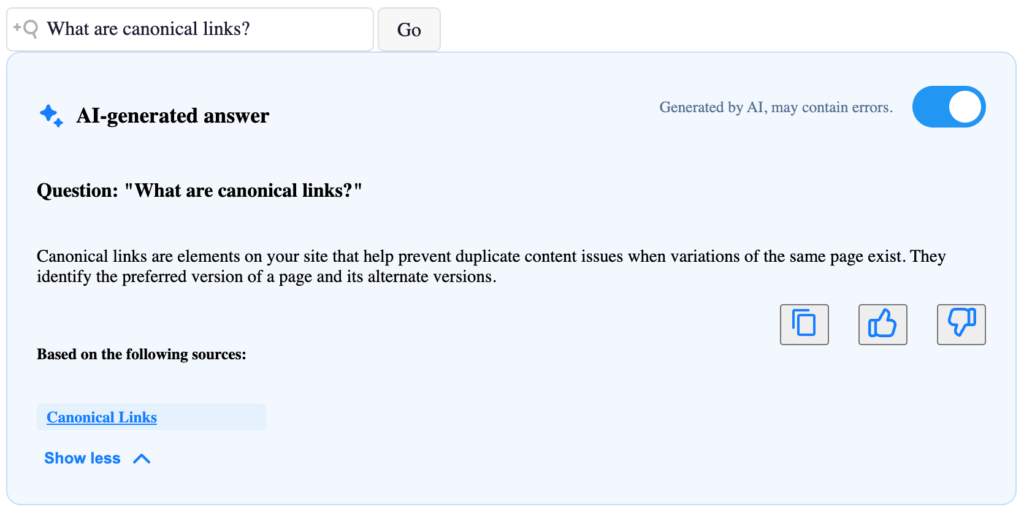
AI Answers displays only AI-generated results. For a complete search experience, it can be combined with conventional search results on a dedicated results page. You can use a standard search form on your main pages to direct users to a results page displaying both AI-generated answers and conventional search results.
Implementing AI Answers requires familiarity with HTML and JavaScript.
1. Include the dependencies
Include the latest versions of the AddSearch JavaScript Client, Search UI Library, and optionally the CSS:
<script src="https://cdn.jsdelivr.net/npm/addsearch-js-client@1.2/dist/addsearch-js-client.min.js"></script>
<script src="https://cdn.jsdelivr.net/npm/addsearch-search-ui@0.10/dist/addsearch-search-ui.min.js"></script>
<link rel="stylesheet" href="https://cdn.jsdelivr.net/npm/addsearch-search-ui@0.10/dist/addsearch-search-ui.min.css" />
Visit the Search UI Library repository and the AddSearch Search API Client for JavaScript repository on GitHub to ensure you’re including the latest versions. The latest CSS version matches to the latest Search UI Library version.
2. Create the containers
Add container elements for the Search Field and AI Answers components:
<div id="searchfield-container"></div>
<div id="ai-answers-result-container"></div>
The id values you choose will be used in the components’ settings to specify where the component should be rendered.
3. Create the instances
Initialize the AddSearch JavaScript and Client and Search UI Library instances.
// Client Instance
const addSearchClient = new AddSearchClient('YOUR_PUBLIC_SITE_KEY');

// Search UI instance (set hasAiAnswers to true in options)
const addSearchUi = new AddSearchUI(addSearchClient, { hasAiAnswers: true });
Streaming (rendering the answer in real time) is enabled by default. To disable streaming, add useAiAnswersStream(false) setting after aiAnswersResults component to the code:
// Optional: Disable streaming for AI Answers, enabled by default
addSearchClient.useAiAnswersStream(false)
You can find your public site key from the Keys and Installation page under Setup in the AddSearch dashboard.
4. Create the components
Set up the searchField and aiAnswersResult components:
// Instantiate Search Field
addSearchUi.searchField({
    containerId: 'searchfield-container',
    placeholder: 'Type your question',
    button: 'Go'
});

// Instantiate AI Answers UI
addSearchUi.aiAnswersResult({
    containerId: 'ai-answers-result-container',
    mainHeadlineText: 'AI-generated answer',
    answerMaxHeight: 150,
    sourcesHeadlineText: 'Based on the following sources:',
    hasHideToggle: true,
    expandByDefault: true
});
The searchField component is required to render the input field for questions, while the aiAnswersResult component displays the AI-generated answers. Please ensure that the containerId in each component matches its corresponding container ID.
The expandByDefault setting controls whether the AI Answers box should be fully expanded by default.
- When
false(default), the UI applies a minimum height and shows an expand button. - When
true, the answer box starts fully expanded.
5. Start the Search UI
After setting the component, start the Search UI:
addSearchUi.start();
When the Search UI is started, the components are rendered in the container elements.
6. Customize the appearance (optional)
You can customize the appearance of the AI Answers using CSS:
#ai-answers-result-container {
  margin-top: 24px;
}
Complete example
After implementing all the steps, your HTML file should look like this:
<!DOCTYPE html>
<html lang="en">

<head>
    <title>AddSearch AI Answers</title>
    <script src="https://cdn.jsdelivr.net/npm/addsearch-js-client@1.2/dist/addsearch-js-client.min.js"></script>
    <script src="https://cdn.jsdelivr.net/npm/addsearch-search-ui@0.10/dist/addsearch-search-ui.min.js"></script>
    <link rel="stylesheet" href="https://cdn.jsdelivr.net/npm/addsearch-search-ui@0.10/dist/addsearch-search-ui.min.css" />
</head>

<body>

    <div id="searchfield-container"></div>
    <div id="ai-answers-result-container"></div>

    <script>
        // Client Instance
        const addSearchClient = new AddSearchClient('YOUR_PUBLIC_SITE_KEY');

        // Search UI instance (set hasAiAnswers to true in options)
        const addSearchUi = new AddSearchUI(addSearchClient, { hasAiAnswers: true });

        // Optional: Disable streaming for AI Answers, enabled by default
        addSearchClient.useAiAnswersStream(false);

        // Instantiate Search Field
        addSearchUi.searchField({
            containerId: 'searchfield-container',
            placeholder: 'Type your question',
            button: 'Go'
        });

        // Instantiate AI Answers Search UI
        addSearchUi.aiAnswersResult({
            containerId: 'ai-answers-result-container',
            mainHeadlineText: 'AI-generated answer',
            answerMaxHeight: 150,
            sourcesHeadlineText: 'Based on the following sources:',
            hasHideToggle: true,
            expandByDefault: true
        });
    </script>

</body>

</html>
Troubleshooting
- Ensure your JS-Client Library version is 1.2 or higher
- Ensure your Search UI Library version is 0.10 or higher
- Verify the containerId matches exactly in HTML and JavaScript
- Check that hasAiAnswers: true is set in the UI instance